
If you own a Samsung television and want a simple way to watch live TV, films, series, and other online video content, an IPTV Samsung Smart TV setup can be an excellent option. It does not usually require a separate streaming box because many Samsung TVs can run compatible apps directly through the built-in app store. In this guide, you will learn how IPTV works on Samsung TVs, how to choose a player, how to install it, how to add your playlist, and how to fix common streaming problems.
What Is IPTV Samsung Smart TV Streaming?
Understanding IPTV Samsung Smart TV basics makes the setup much easier for first-time users.
IPTV stands for Internet Protocol Television. Instead of receiving television through a traditional aerial, satellite dish, or cable connection, IPTV delivers video over an internet connection.
Your Samsung TV acts as the screen and playback device, while an IPTV player app handles your playlist or provider credentials. The player itself normally does not supply channels. For example, Samsung’s app store currently lists several IPTV player applications, including IPTV Smarters Max, Smarters Player, and M3U IPTV. Their listings make clear that users need their own playlists or access credentials.
This distinction is important: an IPTV player and an IPTV service are not necessarily the same thing. A player is software used to play content, while a provider supplies the streams or channels.
Why Use IPTV Samsung Smart TV?
There are several reasons people choose IPTV on Samsung televisions instead of adding another device.
1. No extra streaming box
If your Samsung TV supports the required application, you may not need a Fire TV Stick, Android box, or other external hardware.
2. Simple remote control experience
A compatible Samsung app can be controlled with your normal TV remote, making navigation convenient for everyday viewing.
3. Large-screen streaming
Watching live channels and on-demand content directly on a modern Samsung display can provide a clean, comfortable experience.
4. Support for useful IPTV features
Depending on the app and service, you may find features such as:
- Electronic Programme Guide (EPG)
- Live TV
- Movies and series
- Subtitles
- Favourites
- Multiple playlists
- Catch-up or replay
- Parental controls
- M3U or Xtream Codes support
Features vary by application, TV model, region, and provider, so always check the app description before choosing one.
What Do You Need for IPTV Samsung Smart TV?
A successful IPTV Samsung Smart TV setup starts with the right combination of hardware, internet access, and legal content.
Before starting, prepare four basic things:
- A compatible Samsung Smart TV
- A reliable internet connection
- A Samsung account where required
- A legitimate IPTV subscription, playlist, or service credentials
Samsung says apps are installed through the TV’s Apps menu, and a Samsung account may be required depending on the TV and region. Samsung also notes that available apps and menu names can vary by model, software version, and region.
For the best experience, a wired Ethernet connection is worth considering if your router is close to the television. Good Wi-Fi can also work well, particularly on a modern 5 GHz network.
How to Install an IPTV App for IPTV Samsung Smart TV
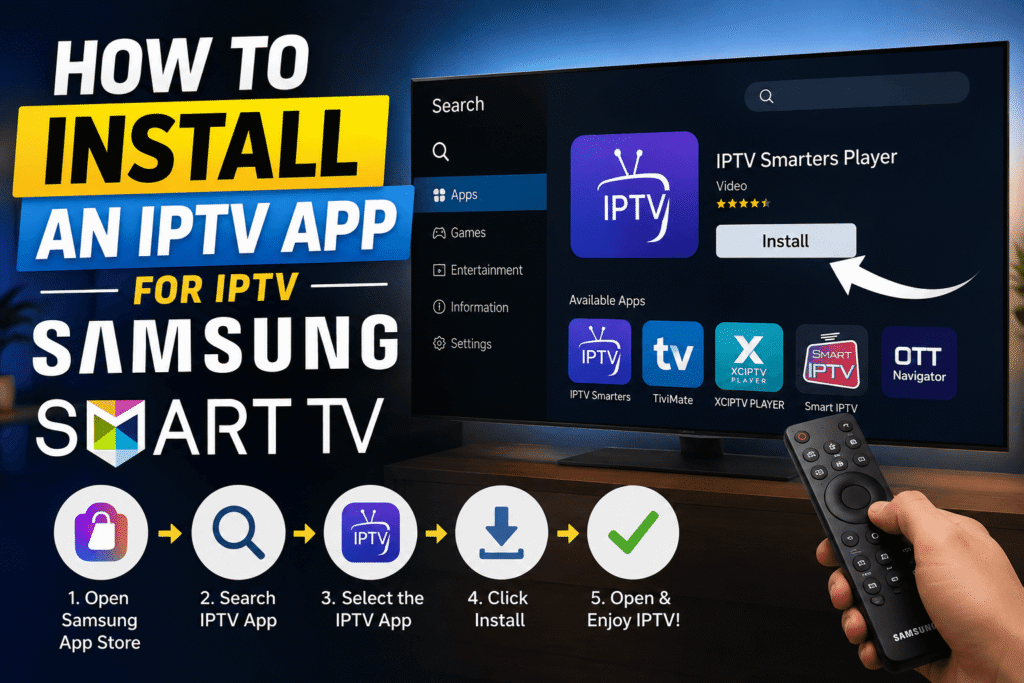
The easiest approach is to use Samsung’s official app store.
Step 1: Connect your TV to the internet
Open your Samsung TV’s network settings and connect using Wi-Fi or Ethernet. Test another streaming app if you want to confirm that the connection is working.
Step 2: Open Apps
Press the Home button on your Samsung remote and open Apps. Samsung’s current instructions say you can use the search icon to find an application by name.
Step 3: Search for an IPTV player
Search for a compatible player. Depending on your region and TV model, you may see different applications.
Some examples currently listed by Samsung include IPTV Smarters Max, Smarters Player, M3U IPTV, and other IPTV player apps. Availability can change, so do not assume that an app available on one Samsung TV or in one country will appear on another.
Step 4: Install the application
Select the app, choose Install, and wait for the installation to finish. You can then open it or add it to your Home screen.
Samsung’s support documentation confirms this basic process: Home → Apps → Search → select the app → Install.
How to Set Up IPTV Samsung Smart TV After Installation
Once installed, your IPTV Samsung Smart TV player is ready to be connected to your chosen playlist.
Installing the player is only the first part. You then need to connect it to your own IPTV service or playlist.
Using Xtream Codes
If your provider gives you an Xtream Codes-compatible login, the app may ask for:
- Server or portal URL
- Username
- Password
Enter the information exactly as provided. A single missing character can prevent the playlist from loading.
Using an M3U playlist
Some players accept an M3U or M3U8 playlist. You may need to enter a playlist URL or upload a playlist according to the app’s instructions.
Do not share your username, password, or private playlist URL publicly. Treat IPTV credentials like any other account login.
Best Apps for IPTV Samsung Smart TV
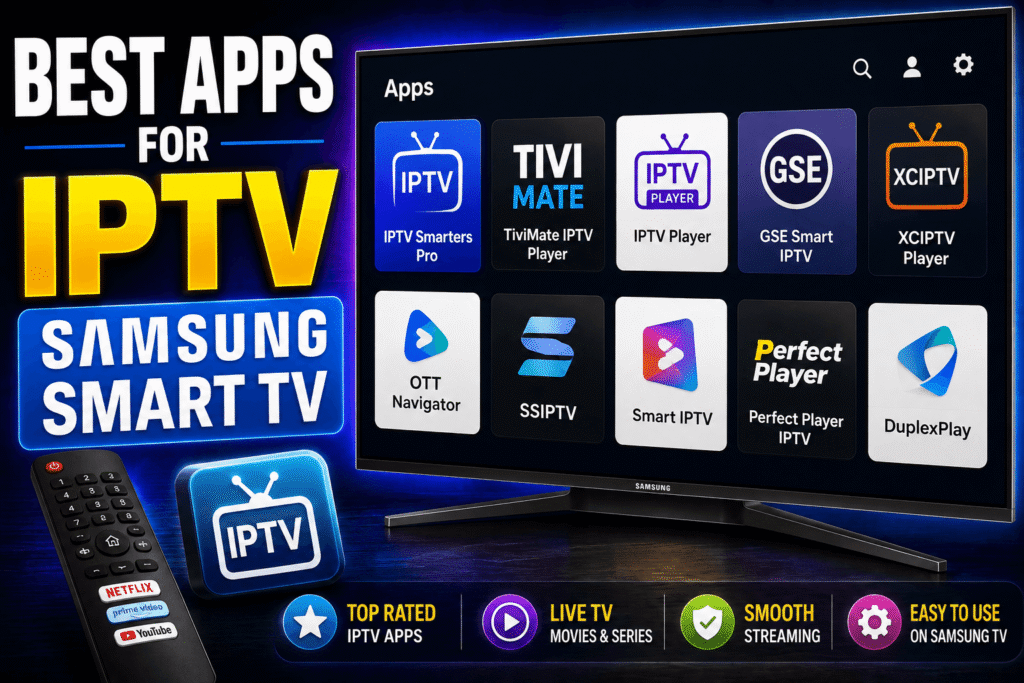
There is no single best app for everyone. The right choice depends on your TV model, region, playlist format, interface preferences, and desired features.
IPTV Smarters Max
Samsung’s app listing describes IPTV Smarters Max as a video player with features including EPG, subtitles, 4K streaming, favourites, and movie and series information. The listing also states that the application does not include channels.
Smarters Player
The Samsung listing for Smarters Player says it supports M3U and Xtream Codes API, EPG, live TV, movies, series, catch-up, parental controls, and an adaptive player. Again, the app itself does not provide channels.
M3U IPTV
M3U IPTV is another option listed in Samsung’s store. Its listing says users can load an M3U or M3U8 playlist from a USB device or URL.
Before installing any app, check its current rating, developer information, supported formats, pricing, privacy information, and compatibility with your television.
IPTV Samsung Smart TV: How to Improve Streaming Quality
A well-optimised IPTV Samsung Smart TV connection can make a noticeable difference to live streaming.
Even with a good app and a legitimate service, buffering can happen. Try these practical improvements.
Check your internet connection
Run a speed test on another device connected to the same network. If several devices are using bandwidth simultaneously, streaming performance may fall.
Prefer Ethernet when possible
A wired connection can reduce wireless interference and provide more consistent performance.
Restart your router and TV
It sounds simple, but restarting both devices can resolve temporary connection or app problems.
Keep your TV software and apps updated
Samsung supports automatic app updates, and keeping software current can help with compatibility and stability.
Reduce network congestion
Pause large downloads, cloud backups, gaming updates, or other heavy traffic while watching high-quality streams.
Check the source
If one channel buffers while other channels play normally, the issue may be with the stream or provider rather than your Samsung TV.
Common IPTV Problems on Samsung TV
The IPTV app is not showing in the store
This can happen because app availability depends on your region, TV model, software version, or the developer’s distribution choices. Samsung states that only apps available in its app store can be installed directly on the Smart TV.
The playlist will not load
First, verify the URL, username, password, and playlist format. If the credentials are correct, contact your IPTV provider or check whether the service is currently online.
Channels keep buffering
Test another channel. If everything buffers, investigate your network. If only specific streams fail, the problem may be server-side.
The app crashes
Restart the TV, update the app, check available storage, and reinstall the application if necessary. If the problem continues, try another compatible player.
EPG is empty
EPG data is often supplied separately from the video streams. Check whether your service provides an EPG URL or whether your player requires additional configuration.
Is IPTV Legal on Samsung Smart TV?
IPTV technology itself is not illegal. The important issue is whether the content you access is properly licensed.
Use IPTV services and playlists that have the necessary rights to distribute the channels and content they offer. Avoid services that promise premium channels, films, or sports at suspiciously low prices without clear licensing information.
Your Samsung TV does not determine whether an IPTV service is legal. The responsibility depends on the source and the rights associated with the content.
Tips for Choosing a Reliable IPTV Service
If you are comparing services, look beyond the number of channels advertised.
Consider:
- Legal licensing and content rights
- Connection stability
- Customer support
- Compatible devices
- EPG quality
- Video quality
- Refund policy
- Transparent pricing
- Privacy and security practices
A huge channel list is not useful if streams constantly freeze. Stability and legitimate access should come first.
IPTV Samsung Smart TV vs External Streaming Device
For many households, IPTV Samsung Smart TV viewing is enough without buying additional hardware.
Use the Samsung TV directly if:
- Your preferred player is available in the app store.
- You want a simple setup.
- You do not want another remote.
- Your TV has sufficient performance for your chosen app.
Consider an external device if:
- Your preferred app is unavailable.
- Your Samsung TV is older.
- You want access to a different operating system.
- You need features that your TV’s apps do not provide.
The best setup is the one that gives you reliable playback without unnecessary equipment.
How to Make Your IPTV Setup Safer
Streaming apps can involve account credentials and personal information, so basic security matters.
Use strong passwords, avoid sharing private playlist links, install apps from trusted sources, and keep your TV software updated. Be especially careful with websites offering unknown APK files or unofficial installation packages. Samsung’s own guidance recommends using the official TV app store for installing apps.
Also remember that an IPTV player does not automatically make an unlicensed service legitimate. Always check the source of the content.
FAQ
Can I watch IPTV Samsung Smart TV content directly on a Samsung Smart TV?
Yes, if your Samsung TV supports a compatible IPTV player available in its app store. App availability varies by model, software version, and region.
Do Samsung Smart TVs support M3U playlists?
Some IPTV applications available through Samsung’s app store support M3U or M3U8 playlists. Check the individual app’s current features before choosing it.
Do I need a Fire Stick for IPTV on Samsung TV?
Not necessarily. If your preferred IPTV player is available directly on your Samsung TV, you can use the TV without a Fire Stick or Android box.
Why is IPTV buffering on my Samsung TV?
Common causes include weak Wi-Fi, network congestion, overloaded streaming servers, poor-quality streams, or an outdated application. Test different channels and check your network to identify the cause.
Can I install any IPTV app on a Samsung TV?
No. Samsung states that only applications available through its TV app store can be installed directly on the Smart TV. Availability can also vary by region and model.
Does an IPTV app provide channels?
Usually, no. Many IPTV player apps are simply media players. You normally need your own compatible playlist or credentials from a service that has the rights to provide the content.
Conclusion
For beginners, IPTV Samsung Smart TV is one of the simplest ways to explore internet-based television on a compatible Samsung display.
Setting up IPTV on a Samsung television can be straightforward when you choose a compatible player, use a reliable internet connection, and have legitimate access to the content you want to watch.
Start by checking your TV’s Apps section, choose a suitable player, install it, and enter your M3U or Xtream-compatible details if supported. If you experience buffering, work through your network, app, and service one step at a time instead of immediately replacing your TV.
The biggest lesson is simple: the app is only one part of the experience. A stable connection, trustworthy service, compatible TV, and properly licensed content are what turn a basic setup into a dependable streaming experience.
Ready to get started? Check your Samsung TV’s app store, compare compatible IPTV players, and choose a legal service that matches your viewing needs.