
Want to watch live TV, sports, films and on-demand content without relying entirely on traditional television packages? IPTV on Apple TV can be an attractive option for Apple TV owners who want a modern way to access internet-based television.
Apple TV is known for its fast interface, high-quality streaming and strong app ecosystem. When combined with a legitimate IPTV service and a compatible IPTV player, it can provide a convenient viewing experience on your television.
But how does IPTV work on Apple TV? Which apps should you use? Do you need an M3U playlist or Xtream Codes? And what should UK viewers consider before choosing an IPTV provider?
This complete guide explains everything beginners and intermediate users need to know, from choosing an IPTV service to installing a player and improving streaming performance.
What Is IPTV on Apple TV?
IPTV on Apple TV means watching television content delivered over an internet connection through your Apple TV device rather than receiving it through traditional satellite, aerial or cable television infrastructure.
IPTV stands for Internet Protocol Television. Instead of broadcasting television programmes in the traditional way, IPTV services deliver video through internet protocols.
Depending on the service, IPTV can provide:
- Live television channels
- Sports channels
- News
- Movies
- TV series
- Catch-up television
- Video-on-demand content
- Electronic programme guides (EPG)
However, it is important to understand that IPTV technology itself is legal. The legality depends on the content provider and whether the service has the appropriate rights to distribute the channels and programmes it offers.
For UK viewers, always choose a legitimate provider that is authorised to distribute the content you watch.
How Does IPTV Work on Apple TV?
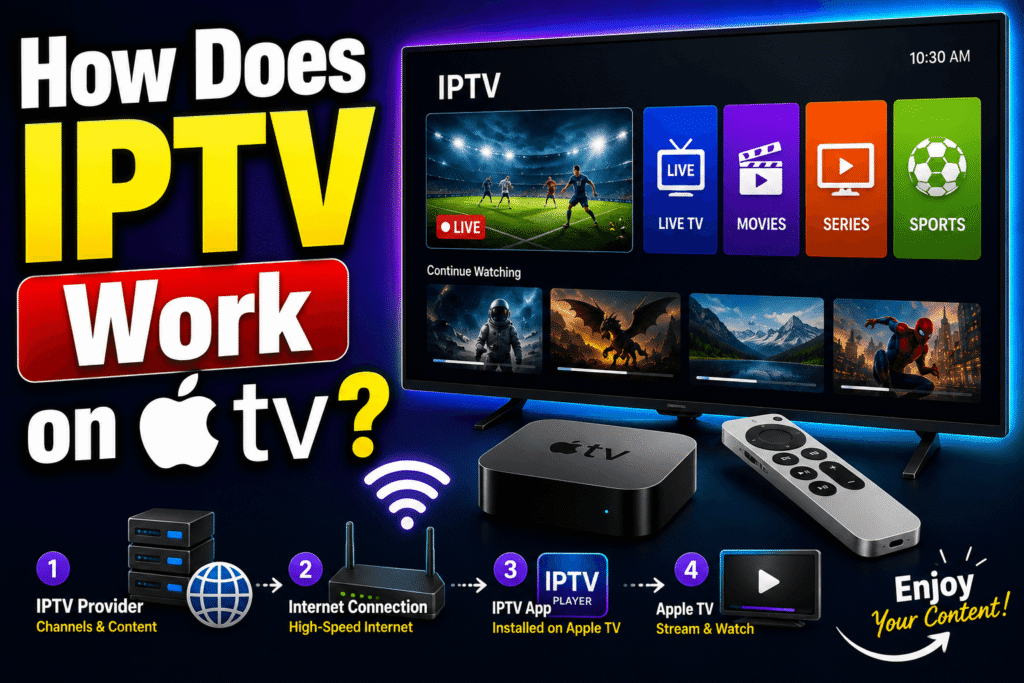
The basic process is relatively simple.
Your IPTV provider supplies access to television content through an internet connection. An IPTV player app on your Apple TV then connects to the provider and displays the available channels or on-demand content.
The typical setup looks like this:
Internet connection → IPTV provider → IPTV playlist/service → IPTV player → Apple TV → television
Depending on the provider, you may receive login details such as:
- M3U playlist URL
- Xtream Codes credentials
- Portal information
- Username and password
- EPG URL
Not every IPTV app supports every type of login, so checking compatibility before subscribing is important.
What Do You Need for IPTV on Apple TV?
Getting started does not require complicated equipment.
1. Apple TV
You need a compatible Apple TV device connected to your television and internet connection.
2. Reliable Internet
Streaming quality depends heavily on your internet connection.
For comfortable streaming, consider approximately:
- HD streaming: around 5–10 Mbps
- Full HD streaming: around 10 Mbps or more
- 4K streaming: often 25 Mbps or more
These are general guidelines rather than guarantees. Network congestion, Wi-Fi quality, streaming compression and server performance can all affect playback.
3. A Legitimate IPTV Provider
Your provider supplies the actual television content. Before paying, check:
- Whether the service is authorised
- Which channels are included
- Supported devices
- Streaming quality
- Customer support
- Refund terms
- Subscription conditions
Avoid services that advertise huge numbers of premium channels at suspiciously low prices without clearly explaining their licensing.
4. A Compatible IPTV Player
An IPTV player acts as the interface between your Apple TV and your IPTV service.
The player normally does not provide channels itself. Instead, it loads content from a service or playlist you are authorised to use.
Best IPTV Apps for Apple TV
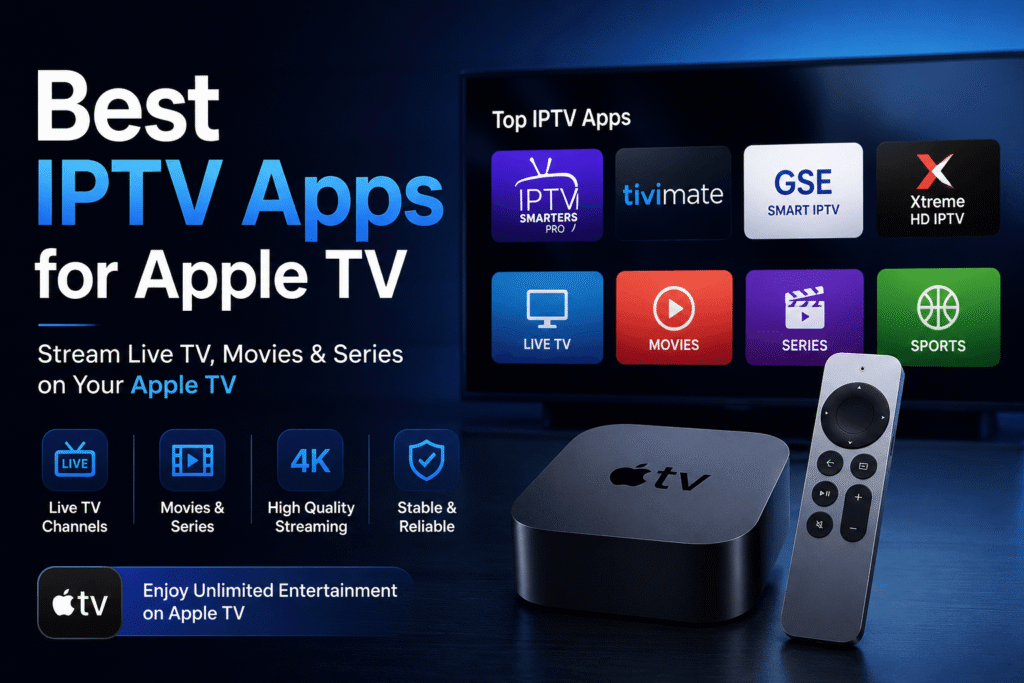
One of the most important steps when setting up IPTV on Apple TV is selecting a suitable player.
The App Store contains different IPTV and media-player applications, but features vary considerably.
When comparing apps, look for:
- M3U support
- Xtream Codes support
- EPG compatibility
- Favourite channels
- Recently watched content
- Multiple playlists
- Catch-up support
- Subtitle support
- AirPlay compatibility
- Easy navigation
- Regular updates
Check Compatibility Before Subscribing
A common mistake is purchasing an IPTV subscription and only afterwards discovering that the preferred Apple TV app does not support the provider’s login method.
Before subscribing, determine whether the service provides M3U, Xtream Codes or another supported method and then select an appropriate player.
How to Install an IPTV App on Apple TV
Installing an IPTV player is usually straightforward.
Step 1: Connect Apple TV to the Internet
Go to your Apple TV settings and make sure the device is connected to your Wi-Fi or Ethernet network.
For the most reliable performance, Ethernet is often preferable when available.
Step 2: Open the App Store
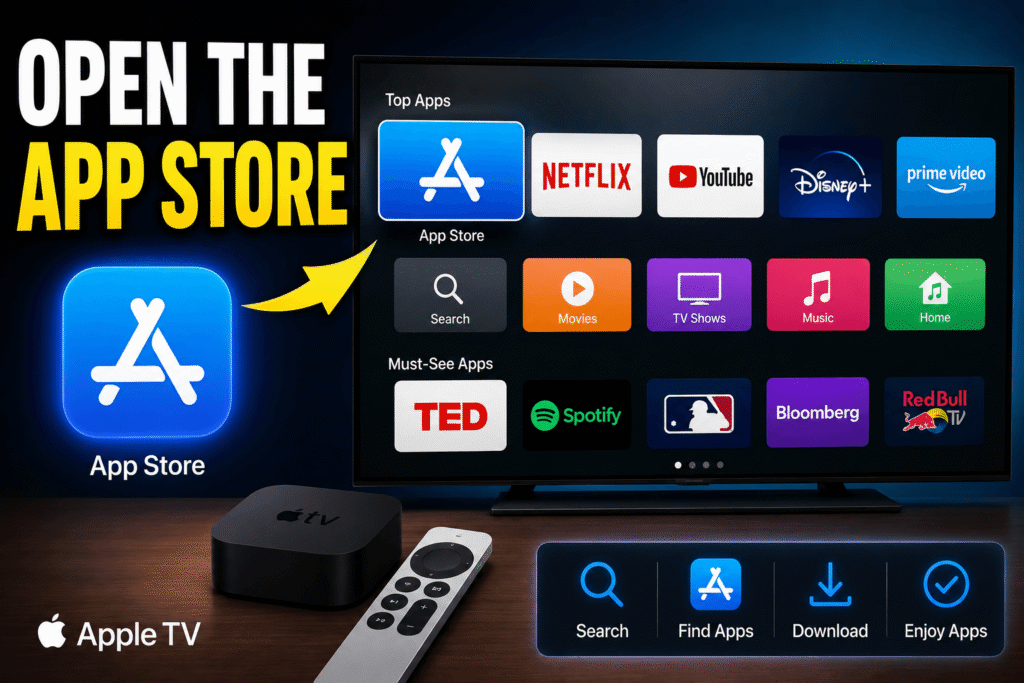
From the Apple TV home screen, open the App Store.
Step 3: Search for an IPTV Player
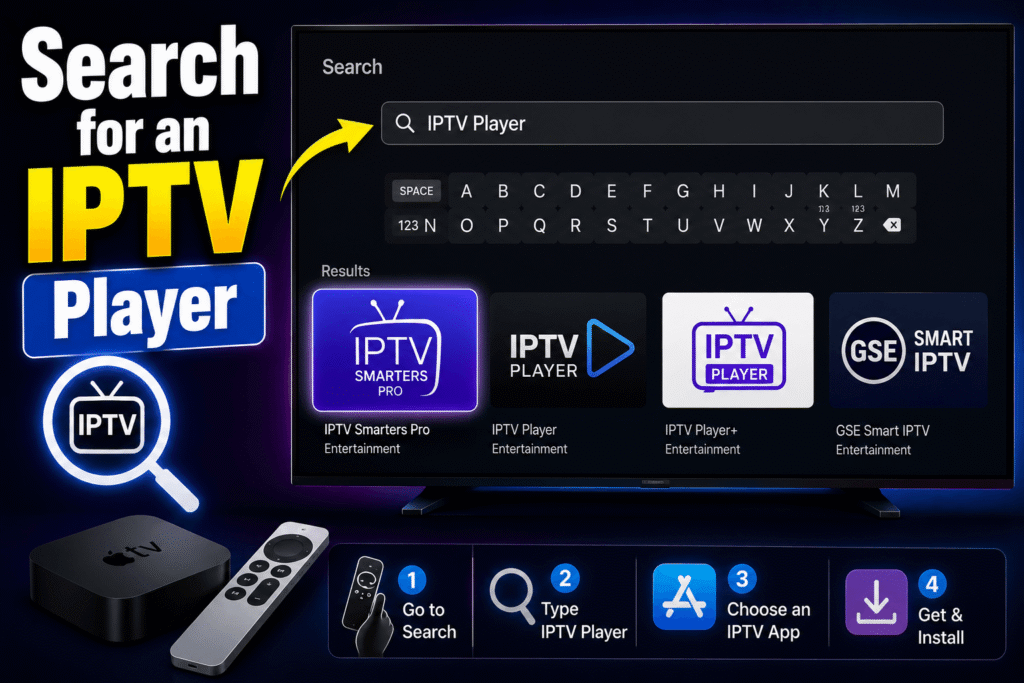
Search for an IPTV or media-player application that supports your provider’s access method.
Read the app description carefully and check recent reviews before installing.
Step 4: Install the Application
Select the appropriate app and install it on your Apple TV.
Step 5: Add Your IPTV Service
Open the application and follow its instructions.
Depending on the app, you may need to enter:
- Playlist URL
- Username
- Password
- Xtream Codes information
- EPG information
Only enter credentials supplied by a legitimate IPTV provider.
Step 6: Load Your Channels
Once your account or playlist has been successfully added, the application should organise your available content into categories.
You may see sections such as:
- Live TV
- Sports
- News
- Entertainment
- Movies
- Series
- Favourites
The exact interface depends on the application and IPTV provider.
M3U vs Xtream Codes: Which Is Better?
When setting up IPTV, beginners often encounter the terms M3U and Xtream Codes.
M3U Playlist
An M3U playlist is essentially a file or URL containing information about available media streams.
It can be convenient because one playlist can contain many channels.
Xtream Codes
Xtream Codes typically uses a server address together with a username and password.
Many IPTV applications support this format because it can make organising channels, categories and programme information easier.
Neither option automatically means that a service is legal or illegal. The important issue is whether the provider has the rights to distribute the content.
How to Improve IPTV Streaming on Apple TV
Even with a good Apple TV and legitimate service, buffering can happen.
Fortunately, several improvements can help.
Use Ethernet Where Possible
A wired Ethernet connection can provide a more stable connection than Wi-Fi, particularly if your Apple TV is far from the router.
Improve Your Wi-Fi
If Ethernet is not practical:
- Place your router in an open location
- Reduce obstacles between router and Apple TV
- Use a modern Wi-Fi standard
- Avoid unnecessary network congestion
- Restart your router occasionally
Reduce Network Traffic
If several people are downloading large files, gaming online or streaming simultaneously, available bandwidth may decrease.
Try reducing heavy network activity when watching live television.
Restart Your Equipment
Sometimes a simple restart can resolve temporary connection problems.
Restarting the Apple TV, router and IPTV application can help identify whether the issue is local rather than related to the provider.
Is IPTV on Apple TV Legal in the UK?
The technology behind IPTV on Apple TV is not inherently illegal.
IPTV is simply a method of delivering television content over the internet. The legal question is whether the provider has permission to distribute the content.
A legitimate IPTV service should have the necessary rights or licences for the content it provides.
Be particularly cautious with services that promise access to premium sports, films and subscription television channels for an unusually low price.
Before subscribing, investigate the provider and read its terms carefully.
Common IPTV Problems on Apple TV
IPTV App Cannot Load the Playlist
Check that the playlist URL or login credentials were entered correctly.
If the information is correct, contact your provider to determine whether the service is currently available.
Channels Keep Buffering
Buffering can be caused by:
- Weak Wi-Fi
- Network congestion
- Slow internet
- Provider-side problems
- Overloaded servers
- Incorrect app configuration
Try another internet connection or Ethernet to determine whether your local network is responsible.
No Programme Guide
If channels appear but the EPG is missing, the service may require a separate EPG URL or the application may need to refresh its programme data.
Check the provider’s setup instructions.
The IPTV App Crashes
Try:
- Closing the application
- Restarting Apple TV
- Checking for app updates
- Checking for tvOS updates
- Reinstalling the application if necessary
IPTV on Apple TV vs Smart TV
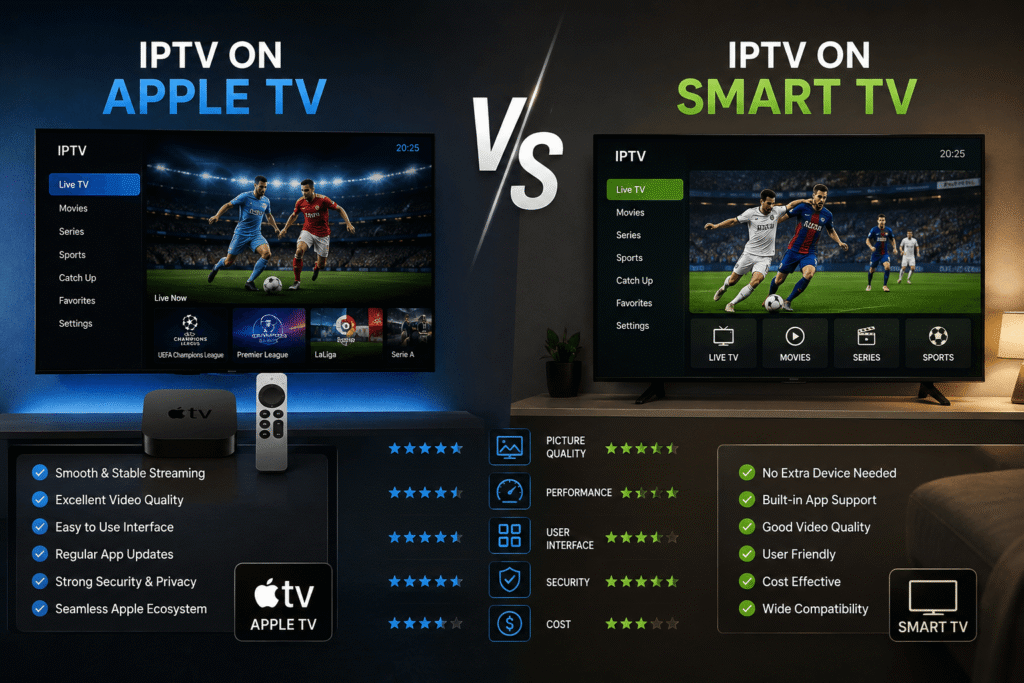
Both platforms can provide internet-based television, but Apple TV has some advantages.
Apple TV Advantages
- Smooth interface
- Dedicated hardware
- Strong performance
- Regular software updates
- AirPlay integration
- Easy switching between applications
Smart TV Advantages
- No additional streaming box required
- IPTV applications can run directly on supported televisions
- One remote can control most functions
If your Smart TV is slow or has limited application support, Apple TV can be a useful alternative because the streaming device handles the applications separately.
Is Apple TV Good for IPTV?
For many users, Apple TV is an excellent streaming device because it combines strong hardware with a clean interface.
However, your overall experience depends on three main factors:
Apple TV performance + IPTV application + provider quality
Buying an expensive streaming device cannot compensate for an unreliable IPTV provider or poor internet connection.
For UK households, it is also worth considering whether the content you want is already available through official streaming platforms or licensed television services.
Tips for Choosing an IPTV Service
If you are searching for an IPTV service, do not choose one simply because it advertises the largest channel list.
Instead, consider:
- Legal content licensing
- Apple TV compatibility
- Streaming reliability
- Video quality
- Customer support
- Transparent pricing
- Cancellation policy
- Privacy and security practices
- Availability of an EPG
- Supported login methods
A smaller legitimate service with reliable streaming can be much better than a questionable service advertising thousands of channels.
Frequently Asked Questions
1. Can you use IPTV on Apple TV?
Yes. You can use compatible IPTV or media-player applications on Apple TV to access IPTV services that support the application’s required playlist or login format.
2. What is the best IPTV app for Apple TV?
There is no single best app for everyone. The right choice depends on your IPTV provider, supported login method, EPG requirements and preferred interface.
3. Do I need an M3U playlist for Apple TV IPTV?
Not necessarily. Some applications support M3U playlists, while others may support Xtream Codes or alternative login methods.
4. Does IPTV work on Apple TV 4K?
Yes. Compatible IPTV applications can be used on Apple TV 4K, provided the application and IPTV service support the device.
5. Why does IPTV buffer on Apple TV?
Buffering can result from slow or unstable internet, Wi-Fi interference, network congestion, provider-side problems or application issues. Testing Ethernet can help identify whether Wi-Fi is the problem.
6. Is IPTV free on Apple TV?
Some IPTV players are free to install, but the availability of television content depends on the service. Be careful with websites offering premium copyrighted channels for free or at suspiciously low prices.
Conclusion
Setting up IPTV on Apple TV can be a straightforward way to access legitimate internet-delivered television through a modern streaming device. The key is choosing a compatible player, using a reliable internet connection and, most importantly, selecting a legitimate IPTV provider with the appropriate content rights.
For the best experience, check app compatibility before subscribing, consider Ethernet for demanding streams, keep your Apple TV and applications updated, and troubleshoot your network before assuming the IPTV service is responsible for buffering.
If you are ready to get started, first check your Apple TV model, internet connection and preferred IPTV login method. Then choose a compatible, legitimate service and IPTV player for your needs.