
Watching television has changed dramatically in the UK. Instead of relying only on traditional satellite, cable or Freeview services, many viewers now use internet-based television to access live channels, on-demand programmes and other streaming content. IPTV on Android TV can be an affordable and flexible option for people who already own an Android TV device or Android TV box.
The good news is that getting started does not require advanced technical knowledge. With a stable internet connection, a compatible Android TV device and a legitimate IPTV service or streaming provider, you can create a convenient home entertainment setup in just a few steps.
This complete guide explains how IPTV works, what you need, how to install a compatible IPTV player, how to add your playlist, improve streaming quality and troubleshoot common problems.
What Is IPTV on Android TV?
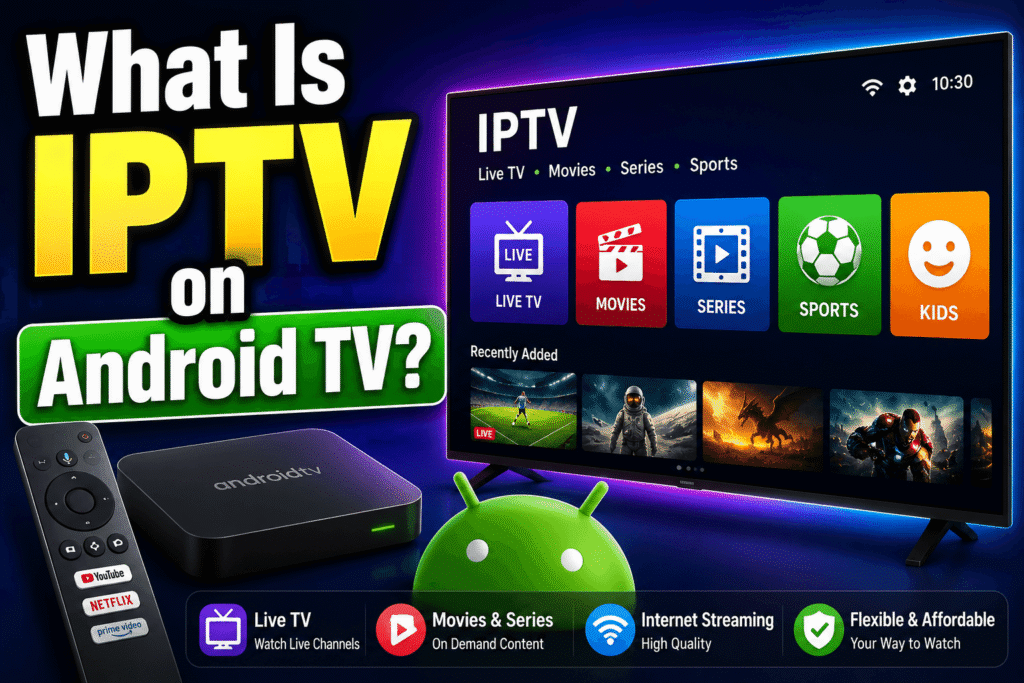
IPTV on Android TV means watching television content delivered through an internet connection rather than through traditional terrestrial, satellite or cable broadcasting.
IPTV stands for Internet Protocol Television. Instead of receiving a television signal through an aerial or satellite dish, your device receives video data over the internet.
Android TV is Google’s television operating system, designed for smart TVs, streaming devices and compatible TV boxes. It supports many streaming applications through its app ecosystem.
A typical setup may include:
- An Android TV smart television or certified Android TV device
- A reliable broadband connection
- An IPTV subscription or legal streaming service
- An IPTV player application
- Login details or an M3U playlist supplied by your provider
It is important to understand that an IPTV player does not normally provide television channels by itself. The application is primarily used to organise and play content supplied by a service or playlist.
How Does IPTV on Android TV Work?
Understanding IPTV on Android TV is easier when you think of it as a three-part system.
First, a content provider makes television or video content available through internet infrastructure. Second, your IPTV service provides access information, such as an M3U playlist or Xtream Codes credentials. Finally, an IPTV player installed on your Android TV receives the information and displays compatible content.
The process generally looks like this:
Content source → IPTV service → Internet connection → IPTV player → Television screen
Your Android TV device connects to the internet using Wi-Fi or Ethernet. The IPTV application then communicates with the relevant server and retrieves the video stream.
Streaming quality depends on several factors, including:
- Internet speed
- Wi-Fi signal strength
- Server performance
- Video resolution
- Network congestion
- Device hardware
- The quality of the source stream
This is why two people using similar televisions can sometimes experience completely different streaming performance.
What Do You Need for IPTV on Android TV?
Before starting, make sure you have the basic equipment and information required for IPTV on Android TV.
1. A Compatible Android TV Device
You can use a television with Android TV or Google TV, or a compatible Android TV streaming device.
Check your television’s operating system before installing an application. Not every smart TV runs Android TV, even if it looks similar to other smart-TV platforms.
2. A Reliable Internet Connection
A stable broadband connection is more important than simply having a high advertised speed.
For general streaming, a reasonable connection may be sufficient, while HD and 4K video require greater bandwidth and stability.
For the best experience:
- Use Ethernet where possible.
- Place your router in a suitable location.
- Avoid unnecessary downloads while streaming.
- Use a modern Wi-Fi standard if Ethernet is unavailable.
- Restart networking equipment if persistent connection problems occur.
3. A Legitimate IPTV or Streaming Service
You need a lawful source of content. Some services offer live television, while others provide video-on-demand libraries or specific channel packages.
Before paying for a service, check what content it actually has the rights to distribute in your region.
4. An IPTV Player
An IPTV player is an application that can load compatible playlists or credentials and organise channels and programmes.
The player itself does not automatically make an unlicensed stream legal. Always consider the source of the content and the terms of the service you are using.
How to Install an IPTV Player on Android TV
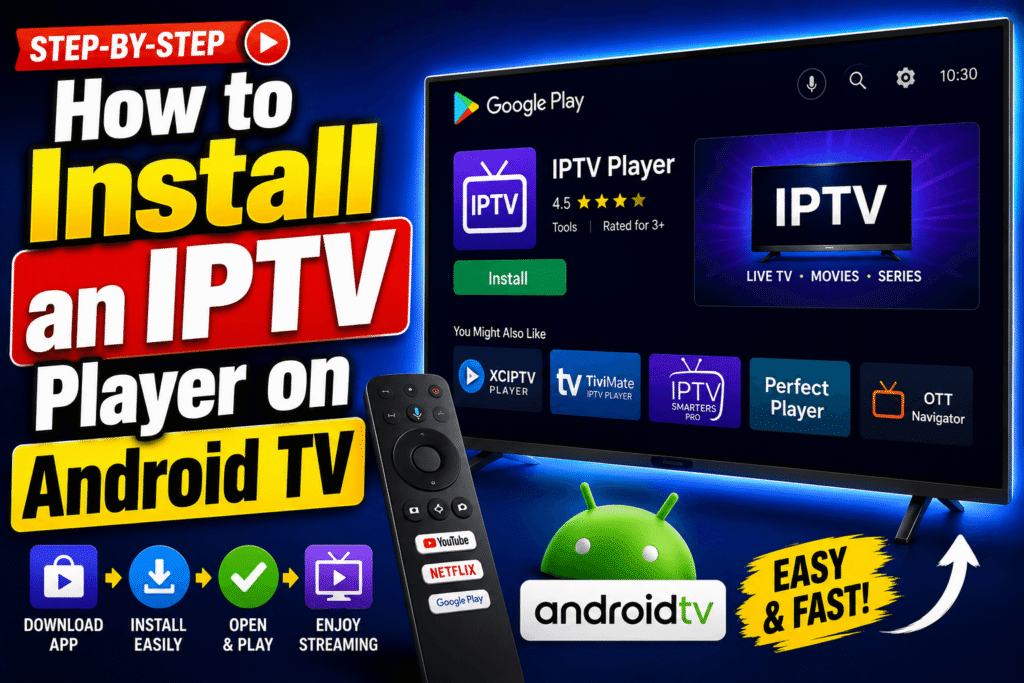
Installing an application for IPTV on Android TV is usually straightforward.
Step 1: Connect Your Android TV to the Internet
Open your television’s network settings and connect to your Wi-Fi network. If possible, use an Ethernet cable for a more stable connection.
Step 2: Open the Google Play Store
From the Android TV home screen, open the Google Play Store.
Search for a reputable IPTV player that is compatible with your device. Look at the application’s description, developer information, reviews and permissions before installing it.
Step 3: Install the App
Select the application and choose Install.
Once installation finishes, open the application.
Step 4: Add Your Legal IPTV Service
Depending on the application, you may be asked to enter information such as:
- M3U playlist URL
- Xtream Codes username
- Xtream Codes password
- Server or portal address
Only enter information supplied by your legitimate provider.
Step 5: Load Your Channels
After entering the correct details, the application may download your channel list and organise it into categories.
The exact menus vary between IPTV players, so follow the application’s instructions carefully.
Best IPTV Apps for Android TV
Choosing the right player can make IPTV on Android TV easier to manage.
Popular types of IPTV applications include players designed around:
- Simple channel lists
- Electronic Programme Guides (EPG)
- Multiple playlists
- Catch-up television
- Favourites
- Parental controls
- Recording features
- External media players
When choosing an application, consider usability rather than simply downloading the first result you find.
A good IPTV player should ideally have:
- A clean interface
- Fast channel loading
- EPG support
- Playlist management
- Regular updates
- Compatibility with your Android TV version
- Clear privacy information
Always download applications from trusted sources and avoid modified APK files from unknown websites.
How to Improve Streaming Quality
Even with a good provider, IPTV on Android TV can occasionally buffer or freeze. Fortunately, several improvements can make a noticeable difference.
Use Ethernet
Ethernet is often the simplest solution when your router is close enough to your television or streaming device.
A wired connection avoids many wireless interference problems.
Improve Wi-Fi
If Ethernet is not practical, move the router closer to the television or use a suitable mesh Wi-Fi system.
Avoid placing the router behind large objects or inside enclosed cabinets.
Reduce Network Traffic
Streaming can compete with other activities on your home network. Large downloads, cloud backups and multiple high-resolution streams can reduce available bandwidth.
Choose an Appropriate Resolution
If your internet connection or device struggles with 4K video, try HD instead.
A stable HD stream is usually much better than a 4K stream that constantly buffers.
Keep Android TV Updated
Install available system and application updates. Updates can improve compatibility, performance and security.
Common IPTV on Android TV Problems and Solutions
If your setup is not working correctly, do not immediately assume that the television is faulty.
Channels Keep Buffering
Possible causes include:
- Weak Wi-Fi
- Network congestion
- Provider-side problems
- High-resolution streams
- Slow or overloaded servers
Try restarting the application, testing another channel and switching to Ethernet if available.
The IPTV App Will Not Open
Restart the television and check whether the application has an available update.
You can also clear the application’s cache through Android TV settings.
Channels Are Missing
Check your playlist or account information. Missing channels can sometimes be caused by an expired subscription, an incorrect playlist or changes made by the content provider.
The EPG Is Not Working
An Electronic Programme Guide requires compatible programme-guide data. If the guide is empty, check whether your provider supplies EPG information and whether the player has been configured correctly.
Video and Audio Are Out of Sync
Try restarting the stream or changing the application’s playback settings. If the problem affects only one channel, the issue may originate from that particular stream.
Is IPTV Legal in the UK?
IPTV technology itself is legal. The important issue is what content is being accessed and whether the provider has the necessary rights.
There are many legitimate IPTV and internet-TV services available in the UK. However, some websites advertise extremely large collections of premium channels at suspiciously low prices.
Be cautious of services promising:
- Every major sports channel for a tiny monthly fee
- Hundreds or thousands of premium channels without clear licensing information
- Recent cinema releases at unusually low prices
- Lifetime access to premium television for a one-off payment
- Anonymous payment methods combined with no company information
Before subscribing, research the provider, read its terms and verify that it has the right to distribute the content it offers.
For UK consumers, it is also worth checking guidance from organisations such as Ofcom and FACT when researching copyright and illegal streaming issues.
IPTV on Android TV vs Traditional Television
One major advantage of IPTV on Android TV is flexibility.
Traditional television services may require dedicated equipment, contracts or specific broadcast infrastructure. Internet television can offer a more app-based experience where supported.
Advantages
- Flexible access to internet-based content
- Easy integration with smart-TV applications
- Potentially large content libraries
- Convenient channel organisation
- Support for HD and 4K where available
- No satellite dish required for internet delivery
Disadvantages
- Dependent on internet quality
- Streaming can buffer
- Service quality varies considerably
- Some services may have limited customer support
- Unlicensed services can create legal and security risks
The best option depends on your viewing habits, budget and internet connection.
How Much Internet Speed Do You Need?
There is no single speed that guarantees perfect IPTV on Android TV because streaming quality depends on more than bandwidth.
As a general guideline, HD streaming needs considerably less bandwidth than 4K streaming. If several people use the same broadband connection simultaneously, you will also need more overall capacity.
For a household that regularly watches multiple high-resolution streams, a faster broadband package with good router coverage can make a significant difference.
However, do not focus only on the advertised download speed. Latency, packet loss, Wi-Fi interference and network stability also matter.
Security Tips for Android TV IPTV Users
Security should not be overlooked when installing IPTV applications.
Follow these basic precautions:
- Download apps from reputable sources.
- Keep Android TV updated.
- Avoid suspicious APK websites.
- Never share your IPTV password publicly.
- Use strong, unique passwords where supported.
- Do not install applications that request unnecessary permissions.
- Be careful with websites offering unrealistic deals.
- Avoid clicking suspicious advertisements or pop-ups.
A cheap subscription is not worth compromising your personal information or device security.
Tips for a Better IPTV Experience
For a smoother IPTV on Android TV setup, use the following checklist:
- Choose a reputable and lawful service.
- Use Ethernet whenever practical.
- Keep your Android TV software updated.
- Select a reliable IPTV player.
- Configure your EPG correctly.
- Remove unused applications.
- Restart your router when connection problems persist.
- Test your internet connection before blaming the IPTV application.
- Avoid overloaded or suspicious services.
- Use HD rather than 4K when your network cannot handle higher resolution.
Small improvements can make your overall viewing experience much more reliable.
Frequently Asked Questions
Is IPTV on Android TV easy to install?
Yes. Most compatible IPTV players can be installed through the Google Play Store. You normally need to install the player and then enter the playlist or account details supplied by your legitimate IPTV provider.
Can I use IPTV on any smart TV?
Not necessarily. IPTV players are available for different platforms, including Android TV, Google TV and other smart-TV operating systems. Always check application compatibility before subscribing.
Do I need a VPN for IPTV on Android TV?
A VPN is not automatically required to watch legitimate IPTV services. Whether you need one depends on your privacy preferences, network setup and the terms of the services you use. A VPN should not be viewed as a way to make unauthorised content legal.
Why does my IPTV keep buffering?
Buffering can be caused by weak Wi-Fi, network congestion, an overloaded streaming server, insufficient bandwidth or problems with the source stream. Testing Ethernet and another stream can help identify the cause.
Can I watch 4K IPTV on Android TV?
Yes, if your Android TV device, television, internet connection, IPTV player and content source all support 4K streaming. A stable connection is particularly important for high-resolution video.
Is an IPTV player the same as an IPTV service?
No. An IPTV player is generally software used to play and organise content. An IPTV service provides the actual content or access credentials. The legality of the content depends on the provider’s rights and licensing.
Conclusion
Setting up IPTV on Android TV can be a simple way to bring internet-based television and streaming content together on your big screen. The basic process involves choosing a compatible Android TV device, connecting it to a reliable internet connection, installing a trustworthy player and adding content from a legitimate provider.
The biggest difference between a frustrating setup and a smooth one is usually preparation. Use a stable network, keep your software updated and choose services carefully. Most importantly, make sure the content you access is legally provided.
If you are ready to improve your Android TV entertainment setup, start by checking your device, internet connection and preferred legitimate streaming services. With the right combination, you can enjoy a cleaner, more flexible and reliable viewing experience.