
If you want to watch live TV and on-demand content through a compatible IPTV service on an Amazon Fire TV Stick, the first step is choosing and installing a suitable player. This guide explains how to install IPTV player on Firestick safely and simply, even if you have never installed a third-party streaming app before.
The process can seem complicated at first, especially when you see unfamiliar terms such as APK, Downloader, M3U and Xtream Codes. Fortunately, once you understand what each part does, the setup is relatively straightforward.
In this UK-focused guide, you’ll learn how to prepare your Firestick, install a compatible IPTV player, enter your legitimate service details, troubleshoot common problems and improve your streaming experience.
Important: An IPTV player is normally just software for playing streams. Make sure any IPTV service or content you use is legally available to you and complies with UK copyright law and the service’s terms.
What Is an IPTV Player?
Before learning how to install IPTV player on Firestick, it is useful to understand what an IPTV player actually does.
IPTV stands for Internet Protocol Television. Instead of receiving television through traditional terrestrial, satellite or cable signals, IPTV delivers video over an internet connection.
An IPTV player provides the interface used to play compatible content. Depending on the application, it may support:
- Live TV channels
- Video-on-demand content
- Electronic Programme Guides (EPG)
- M3U playlists
- Xtream Codes API credentials
- Catch-up or replay features
- Multiple playlists
- Subtitles and audio options
The player itself may not provide television channels. In many cases, you need a separate, legitimate IPTV provider or playlist.
What You Need Before Installing IPTV on Firestick
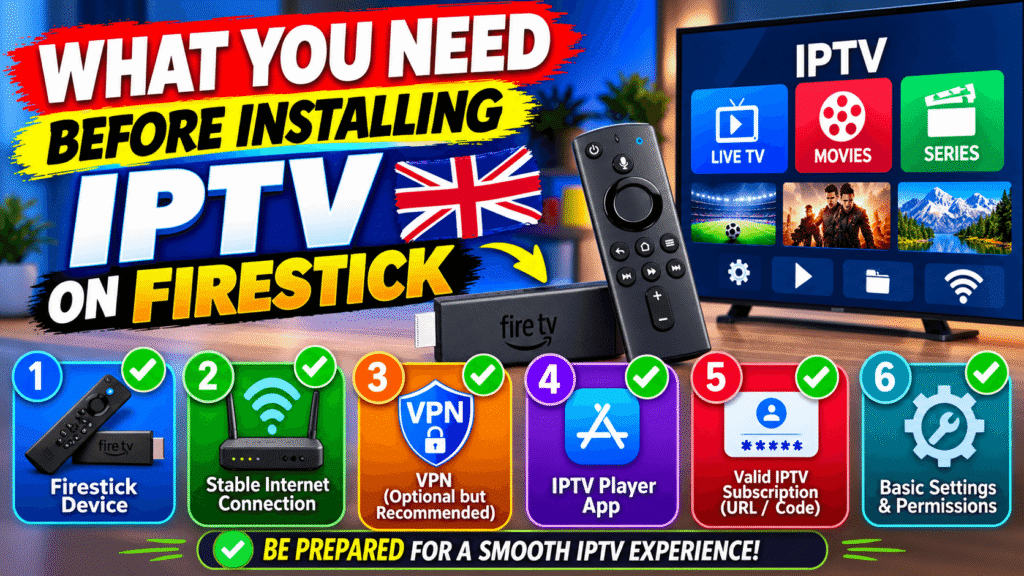
Before starting how to install IPTV player on Firestick, prepare the following:
1. An Amazon Fire TV Stick
The exact menu names can vary between Fire TV models and software versions. Make sure your device is connected to your television and connected to the internet.
2. A reliable internet connection
For standard-definition streaming, a modest connection may be sufficient. HD and 4K streaming generally require more bandwidth and a stable connection.
A wired Ethernet connection or strong Wi-Fi can help reduce buffering.
3. A compatible IPTV player
Choose a player that supports your playlist or provider’s login method. Check the application’s official documentation where possible.
4. Legal streaming credentials
If your provider gives you an M3U URL, Xtream Codes login or another supported method, keep those details ready.
Never enter credentials from an unknown source into an application you do not trust.
How to Install IPTV Player on Firestick Step by Step
Now let’s go through how to install IPTV player on Firestick from start to finish.
Step 1: Connect Your Firestick to the Internet
Turn on your Firestick and make sure it is connected to your home Wi-Fi.
Go to:
Settings → Network
Select your Wi-Fi network and enter the password if necessary.
If possible, use a stable 5 GHz Wi-Fi connection when your router and Firestick support it.
Step 2: Search for the IPTV Player
From the Fire TV home screen, select the search option.
Type the name of the IPTV player you want to use.
If the application is officially available through the Amazon Appstore, this is normally the simplest installation method.
Select the application and choose Get, Download or the equivalent option shown on your Fire TV.
Step 3: Open the Application
Once the installation has finished, select Open.
You can also find the application later from:
Apps & Channels → See All
If you use the application regularly, you can move it closer to the beginning of your app list for quicker access.
Step 4: Allow Any Necessary Permissions
Depending on the player, you may see permission requests when you open it.
Read each request carefully. Only grant permissions that make sense for the application.
You should be particularly cautious if an unofficial application asks for permissions unrelated to streaming.
Installing an IPTV Player Using Downloader
Some IPTV players may not be available directly through the Amazon Appstore. In that situation, users sometimes install compatible Android applications through an APK file.
This is where Downloader is commonly used.
However, installing an APK from an unknown website can introduce security and privacy risks. Only obtain software from a source you trust and verify that the application is legitimate.
If you’re learning how to install IPTV player on Firestick, remember that the safest option is generally to use an official app-store listing whenever one is available.
Enable Apps From Unknown Sources
On supported Fire TV software, the relevant setting may be found under a menu similar to:
Settings → My Fire TV → Developer Options → Install Unknown Apps
Select Downloader and enable permission if required.
Amazon periodically changes Fire TV menus, so the exact location or wording may differ depending on your device and software version.
Install Downloader
Search for Downloader in the Amazon Appstore.
Select the official application, install it and open it.
You can then use it to access a legitimate APK download location when appropriate.
Be Careful With APK Files
An APK is an Android application package. Fire TV devices use software based on Android, which is why compatible APK applications can sometimes be installed.
However, APK installation does not automatically mean an application is safe.
Before installing an APK:
- Check the developer.
- Use the official website when possible.
- Avoid suspicious download pages.
- Do not disable important security features unnecessarily.
- Keep your Fire TV software updated.
- Delete APK files you no longer need.
How to Configure Your IPTV Player
Installing the application is only part of how to install IPTV player on Firestick.
After opening your player, you normally need to add your legitimate streaming source.
Depending on the application, you may see options such as:
M3U Playlist
An M3U playlist is a file or URL containing information about available streams.
Your legitimate provider may supply an M3U URL that you can enter into the player.
Xtream Codes API
Some IPTV players support an Xtream Codes login.
You may need:
- Username
- Password
- Server URL
Enter these exactly as supplied by your provider.
Do not share your login details publicly or with people you do not trust.
EPG
EPG means Electronic Programme Guide.
It can display information about programmes, schedules and channels.
Some services automatically provide EPG information, while others require a separate EPG URL.
Best Settings for IPTV Streaming on Firestick
After learning how to install IPTV player on Firestick, adjusting a few settings can make the experience smoother.
Use a Strong Wi-Fi Connection
Place your Firestick within reasonable range of your router.
Avoid placing the device behind large electronic equipment where possible.
Restart Your Firestick Occasionally
A restart can clear temporary memory and resolve minor application problems.
You can usually restart through the Fire TV settings or by briefly disconnecting and reconnecting the device.
Keep Applications Updated
Updates can fix bugs, improve compatibility and address security problems.
Check for updates to both Fire TV software and your installed applications.
Avoid Unnecessary Background Apps
If your Firestick has limited storage or resources, removing applications you no longer use can help keep the device organised.
How to Install IPTV Player on Firestick Without Buffering
Many beginners search for how to install IPTV player on Firestick because they are experiencing buffering with their current setup.
However, installing another player does not automatically solve every buffering problem.
Buffering can be caused by:
- Slow internet
- Wi-Fi interference
- Network congestion
- Overloaded streaming servers
- Poor-quality streams
- Outdated software
- Insufficient device storage
- Problems with the IPTV provider
Try running a speed test on another device connected to the same network. If your internet connection is stable but only one stream constantly buffers, the problem may be related to that particular stream or service.
Try a Lower Video Quality
If a 4K stream constantly buffers, try an HD or lower-resolution stream when available.
Higher resolution requires more bandwidth and processing resources.
Restart Your Router
A simple router restart can sometimes resolve temporary connectivity problems.
If several devices in your home are experiencing slow internet at the same time, investigate the network rather than immediately replacing the IPTV player.
Common Firestick IPTV Problems and Solutions
Understanding how to install IPTV player on Firestick is useful, but knowing how to fix common problems is equally important.
IPTV Player Will Not Install
Check:
- Your Firestick has enough storage.
- Your internet connection is working.
- The application is compatible with your Fire TV model.
- You are using an official or trusted installation source.
IPTV Player Opens but Shows No Channels
First check your login details or playlist URL.
Make sure there are no spaces or typing errors.
If the provider’s service is temporarily unavailable, the application itself may not be responsible.
Channels Keep Buffering
Test another channel.
If only one channel buffers, it may be a source-specific problem. If everything buffers, check your internet connection and Wi-Fi quality.
EPG Is Not Working
Confirm that the EPG information is supported by your provider and that the correct EPG source has been entered.
Some providers do not offer EPG data for every channel.
Is IPTV Legal in the UK?
The technology behind IPTV is legal. The important issue is what content is being accessed and whether you have the necessary rights or permission to watch it.
Using an IPTV player to access legitimate services is different from accessing copyrighted television channels or films without permission.
For UK users, always choose reputable services and avoid offers that appear suspiciously cheap or promise access to large amounts of premium content without proper licensing.
This is an important part of learning how to install IPTV player on Firestick responsibly.
For authoritative information, readers can consult the UK government’s copyright guidance and official consumer information about digital services.
How to Improve Firestick Storage
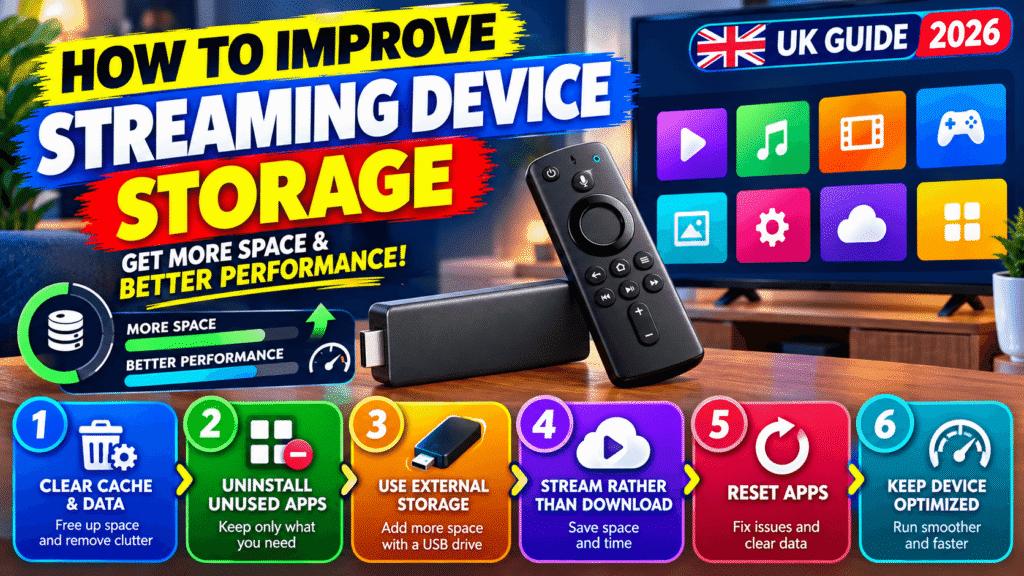
Limited storage can affect your Fire TV experience.
To manage storage:
Settings → My Fire TV → About → Storage
The exact menu can vary by Fire TV version.
Remove applications that you no longer use and avoid filling the device with unnecessary files.
If you regularly install applications through APK files, clean up old installation files when they are no longer required.
How to Make IPTV Easier to Use
Once you understand how to install IPTV player on Firestick, you can make the interface more convenient.
Consider:
- Moving your IPTV player to the front of your app list.
- Creating favourite channels where supported.
- Using the EPG for programme information.
- Removing unused applications.
- Keeping your playlist information secure.
- Using a reliable internet connection.
- Updating your Firestick regularly.
These small changes can make everyday navigation much easier.
Frequently Asked Questions
How to install IPTV player on Firestick if the app is not in the Amazon Appstore?
If the application is unavailable through the official store, check the developer’s official website for supported Fire TV installation instructions. Some compatible applications may provide an official APK, but avoid downloading APK files from unknown websites.
Can I install an IPTV player directly on Firestick?
Yes. Many compatible streaming applications can be installed directly through the Amazon Appstore. If a particular player is not available there, its developer may provide another supported installation method.
Do I need an IPTV subscription to use an IPTV player?
Usually, an IPTV player is simply the software used to play a compatible playlist or service. Whether you need a subscription depends on the content source you want to use.
Why does my IPTV player keep buffering on Firestick?
Possible causes include weak Wi-Fi, network congestion, insufficient bandwidth, overloaded servers or problems with a particular stream. Test different channels and check your internet connection before changing applications.
Is an IPTV player free?
Some IPTV players are free, while others may offer paid features or subscriptions. The cost of the player is separate from any subscription required for legitimate streaming content.
Can I watch 4K IPTV on Firestick?
That depends on your Firestick model, television, internet connection, player and the availability of a genuine 4K stream. A 4K-capable device alone does not guarantee that every stream will play in 4K.
Final Thoughts
Learning how to install IPTV player on Firestick does not have to be difficult. Start by choosing a compatible and trustworthy player, preferably from an official source. Then connect your Firestick to a reliable internet connection, install the application and add your legitimate playlist or provider credentials.
If you experience buffering, check your network, test different streams and keep your Firestick and applications updated. Most importantly, use IPTV technology responsibly and only access content you are legally entitled to watch.
Once your setup is working correctly, take a few minutes to organise your favourites, EPG and application layout. A little preparation can make your Firestick much easier to use every day.
Ready to set up your Firestick? Follow the steps above, use trusted software and take your time with each stage to create a smoother streaming experience.