
If you are new to internet television, learning how to install IPTV on Smart TV can seem complicated at first. The good news is that the basic process is usually straightforward once you understand which app your television supports and what information your IPTV provider gives you.
Unlike traditional broadcast television, IPTV delivers television content over an internet connection. Depending on the service and application you use, you may be able to watch live channels, catch-up content or on-demand programmes directly through your Smart TV.
This guide explains how to install IPTV on Smart TV step by step, with simple instructions for beginners in the UK. It also covers Samsung and LG televisions, Android/Google TV, compatible IPTV players, internet requirements and common problems.
Important: IPTV is a technology for delivering television over the internet. The legality of particular channels or content depends on the provider’s licensing and your location. Always use legitimate services and authorised content.
What Is IPTV?
IPTV stands for Internet Protocol Television. Instead of receiving television programming through traditional terrestrial, satellite or cable broadcasting, IPTV uses an internet connection to deliver content.
There are several types of internet television services:
- Live television channels
- Video-on-demand
- Catch-up television
- Recorded programmes
- Movies and series
- Sports broadcasts
- International channels
The Smart TV itself does not necessarily provide the television content. In many cases, you install a compatible player application and then use login details or a playlist supplied by an authorised service.
Understanding this distinction makes how to install IPTV on Smart TV much easier. The app is generally the tool used to play the content, while the provider supplies the content or access credentials.
What Do You Need Before Installing IPTV?
Before you start, check that you have the following:
1. A compatible Smart TV
Your television needs to support an application that can play your chosen IPTV service.
Common Smart TV platforms include:
- Samsung Tizen
- LG webOS
- Google TV
- Android TV
- Fire TV
- Other compatible Smart TV platforms
2. A reliable internet connection
IPTV relies heavily on your internet connection. For HD streaming, a stable broadband connection is generally more important than simply having a very high advertised speed.
For 4K streaming, you normally need substantially more bandwidth and a stable connection.
3. An authorised IPTV or streaming service
Choose a provider that has the appropriate rights to distribute the programmes you want to watch.
4. A compatible IPTV player
Some services have their own official Smart TV applications. Others may provide instructions for using a compatible third-party player.
How to Install IPTV on Smart TV Step by Step
The exact process depends on your television model and operating system, but the general procedure is similar.
Step 1: Connect Your Smart TV to the Internet
First, connect your television to your home network.
Open your TV’s:
Settings → Network → Wi-Fi
Select your wireless network and enter the Wi-Fi password.
If possible, consider using an Ethernet cable. A wired connection can provide greater stability, particularly when streaming high-resolution video.
Step 2: Open the TV’s App Store
Next, open the application store built into your Smart TV.
Depending on your television, it could be called:
- Samsung Apps
- LG Content Store
- Google Play Store
- Google TV app section
- Amazon Appstore
Search for the official application recommended by your authorised streaming provider.
This is an important part of how to install IPTV on Smart TV because applications are not universally compatible with every television.
Step 3: Search for a Compatible IPTV Player
Enter the name of the compatible application in the TV’s search box.
Before installing anything, check:
- The application’s name
- Developer information
- User reviews
- Compatibility with your TV
- Whether the application is officially available through your TV’s app store
Avoid downloading unknown applications from suspicious websites.
Step 4: Install the Application
Select the application and choose Install, Get or the equivalent option shown on your television.
Wait until the installation finishes.
After installation, select Open.
Step 5: Enter Your Provider Information
Your authorised provider may give you information such as:
- Username
- Password
- Server address
- Playlist URL
- Activation information
The exact information depends on the service and application.
Enter the details carefully. A single incorrect character can prevent the service from connecting.
Step 6: Load Your Channels or Content
After your credentials have been accepted, the application may automatically load your available content.
Depending on the service, you could see categories such as:
- Live TV
- Movies
- Series
- Catch-up
- Favourites
- Electronic Programme Guide (EPG)
At this stage, the basic how to install IPTV on Smart TV process is complete.
How to Install IPTV on Samsung Smart TV
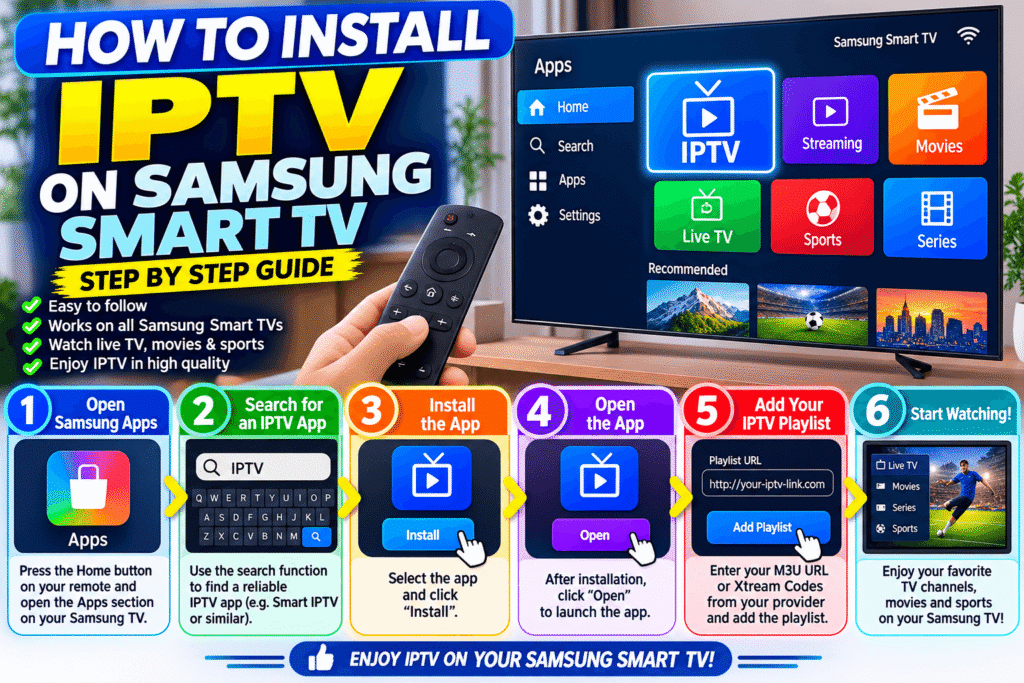
Samsung Smart TVs use the Tizen operating system, so the process can differ from Android TV.
Start by opening the Samsung app section and searching for an application supported by your authorised provider.
The general process is:
- Connect the Samsung TV to the internet.
- Open the Apps section.
- Search for the compatible application.
- Select Install.
- Open the application.
- Follow the provider’s instructions.
- Enter your authorised account or playlist details.
- Wait for the content to load.
If an application is unavailable in your Samsung TV’s app store, do not assume that it is safe to download a random version from the internet. Instead, check the application’s official documentation or ask the service provider which supported method you should use.
How to Install IPTV on LG Smart TV
LG Smart TVs commonly use webOS.
To set up a compatible IPTV application:
- Connect your LG television to Wi-Fi or Ethernet.
- Open the LG Content Store.
- Search for the supported application.
- Install it.
- Launch the application.
- Follow the application’s setup instructions.
- Add your authorised service information.
- Check whether the channel list or on-demand library loads correctly.
The menus can vary between older and newer LG TV models, so the exact names of options may be different.
How to Install IPTV on Android TV
Android TV and Google TV often provide a wider selection of applications.
Open the Google Play Store and search for the application recommended by your legitimate provider.
Then:
- Select the application.
- Choose Install.
- Open it.
- Read the setup instructions.
- Enter your authorised account details.
- Allow the application to synchronise your available content.
Android-based televisions can make how to install IPTV on Smart TV relatively simple because applications can often be installed directly through Google Play.
However, always check that an application is trustworthy before entering personal information.
Internet Speed for IPTV
Your internet connection can have a major effect on streaming quality.
As a general guide, you should have enough stable bandwidth for the resolution you intend to watch. HD streaming requires less bandwidth than 4K, while multiple people streaming simultaneously can increase the total demand on your connection.
For example, if someone is watching a 4K film while another person is gaming online and a third person is using a video call, your household connection may experience greater demand.
For the best experience:
- Use internet where practical.
- Place the router in a suitable location.
- Avoid unnecessary downloads while streaming.
- Restart your router if the connection becomes unstable.
- Keep your Smart TV software updated.
Common IPTV Problems and Solutions
Even after correctly following how to install IPTV on Smart TV, you may occasionally experience problems.
IPTV keeps buffering
Possible causes include:
- Weak Wi-Fi
- Network congestion
- Slow internet
- Router problems
- Problems with the streaming service
Try connecting the TV through Ethernet if possible.
The application will not open
Restart the television and check whether an application update is available.
You can also check whether your TV has sufficient storage space.
Channels are not loading
First check that your account or playlist details were entered correctly.
If the information is correct, contact the authorised service provider to determine whether there is an issue with your account or service.
The picture quality is poor
Check your internet connection and the selected stream quality.
A weak Wi-Fi signal can result in reduced quality or frequent buffering.
The application is unavailable
Not every IPTV application is compatible with every Smart TV.
Check the television’s operating system and the application’s official compatibility information.
IPTV Security and Legal Considerations in the UK
One of the most important parts of how to install IPTV on Smart TV is understanding where your content comes from.
IPTV technology itself is not automatically illegal. The important issue is whether the service has the necessary rights to distribute the content it provides.
When choosing a service, look for:
- Clear company information
- Transparent terms and conditions
- Legitimate payment methods
- Appropriate licensing information
- Official support channels
- A reputable application
Be cautious with services promising huge numbers of premium channels or sporting events at unusually low prices.
You should also avoid entering payment information or passwords into unknown applications.
How to Improve Your Smart TV IPTV Experience
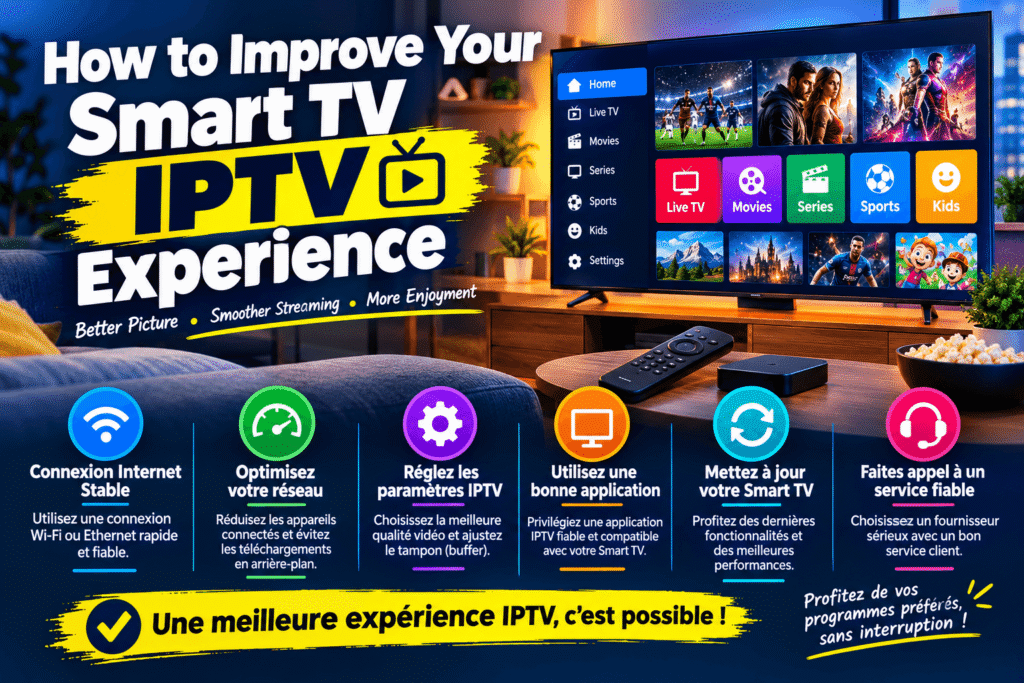
Once your setup is working, a few simple improvements can make streaming easier.
Use Ethernet where possible
A wired connection can reduce wireless interference and provide a more consistent connection.
Keep your TV updated
Install official firmware updates when they become available.
Organise favourites
If your application supports favourites, use them to quickly access the channels or programmes you watch regularly.
Use an EPG
An Electronic Programme Guide can make it easier to see what is currently showing and what is scheduled next.
Keep your login details secure
Never share your account credentials publicly. Use a strong password where the service supports one.
Frequently Asked Questions
Is IPTV legal in the UK?
IPTV is a technology and is not inherently illegal. The key issue is whether the provider has the necessary rights to distribute the content. Use legitimate, authorised services.
Can I install IPTV directly on a Smart TV?
In many cases, yes. The exact method depends on the Smart TV’s operating system and whether a compatible application is available through its official app store.
Do I need an Android TV box?
Not necessarily. If your Smart TV supports a compatible application, you may not need an additional device. An external streaming device can be useful when your television does not support the application you want to use.
Why does IPTV keep buffering on my Smart TV?
Buffering can be caused by Wi-Fi problems, network congestion, insufficient bandwidth, router issues or problems with the streaming service. Testing an Ethernet connection can help identify whether Wi-Fi is the problem.
Can I watch IPTV in 4K?
Yes, where the television, application, internet connection and authorised streaming service all support 4K. Your actual quality will depend on the content and service.
Can I use IPTV on Samsung and LG TVs?
Many Samsung and LG Smart TVs support compatible streaming applications, but application availability varies by model, operating system and region.
Final Thoughts
Learning how to install IPTV on Smart TV is usually easier than it first appears. The key steps are to connect your television to the internet, find a compatible application through an official source, install it and follow the instructions provided by your authorised streaming service.
For beginners, the most important thing is not simply finding an application. You should also check compatibility, protect your account information and make sure the content provider has the appropriate distribution rights.
Once everything is configured correctly, your Smart TV can provide a convenient way to access internet-delivered television and on-demand content without necessarily requiring an additional television box.