
Streaming television has changed dramatically, and IPTV on Smart TV is now a popular way to watch live channels, on-demand programmes and other internet-delivered content without relying only on traditional broadcast services. Instead of receiving television through an aerial, satellite dish or cable connection, IPTV delivers video through an internet connection.
For beginners, however, terms such as M3U playlists, IPTV apps, EPG and compatible devices can seem confusing. The good news is that setting up IPTV on a modern television can be straightforward when you choose a legitimate service and follow the correct steps.
This guide explains how IPTV works, what you need, how to install a compatible app, how to improve streaming quality and how to avoid common problems. It also explains the difference between legal IPTV services and services that distribute copyrighted content without permission.
What Is IPTV on Smart TV?
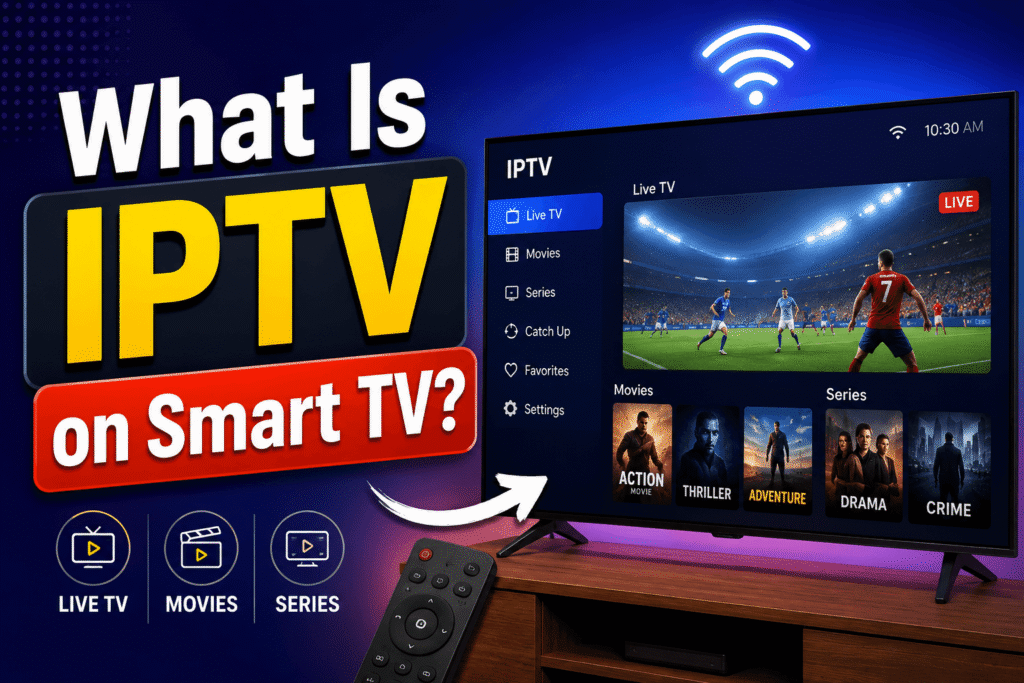
IPTV on Smart TV means watching television content delivered through an internet protocol connection directly on a compatible smart television. IPTV stands for Internet Protocol Television. Rather than using traditional broadcasting methods, the provider sends video data over the internet.
The technology itself is legal. The important issue is the content provider. A legitimate IPTV service has the necessary rights or licences to distribute the channels, films, programmes or sports it offers.
Common IPTV content can include:
- Live television channels
- Catch-up television
- Video-on-demand programmes
- Electronic programme guides (EPG)
- News and entertainment
- Subscription-based streaming packages
IPTV should not automatically be confused with piracy. Many established broadcasters and streaming companies use internet delivery as part of their services.
How Does IPTV Work on a Smart TV?
When using IPTV on Smart TV, your television connects to a streaming service through your home internet connection. The general process is simple:
- You subscribe to a legitimate IPTV or streaming provider.
- The provider gives you access to its service.
- You install the provider’s official app, where available.
- You sign in or enter the authorised account details.
- The app retrieves the available channels and programmes.
- Your TV receives the video stream through the internet.
Some services use a dedicated application, while others may provide a playlist or portal configuration. Only use credentials and playlists supplied by a legitimate provider and avoid unknown websites offering unauthorised premium channels.
What Do You Need for IPTV on Smart TV?
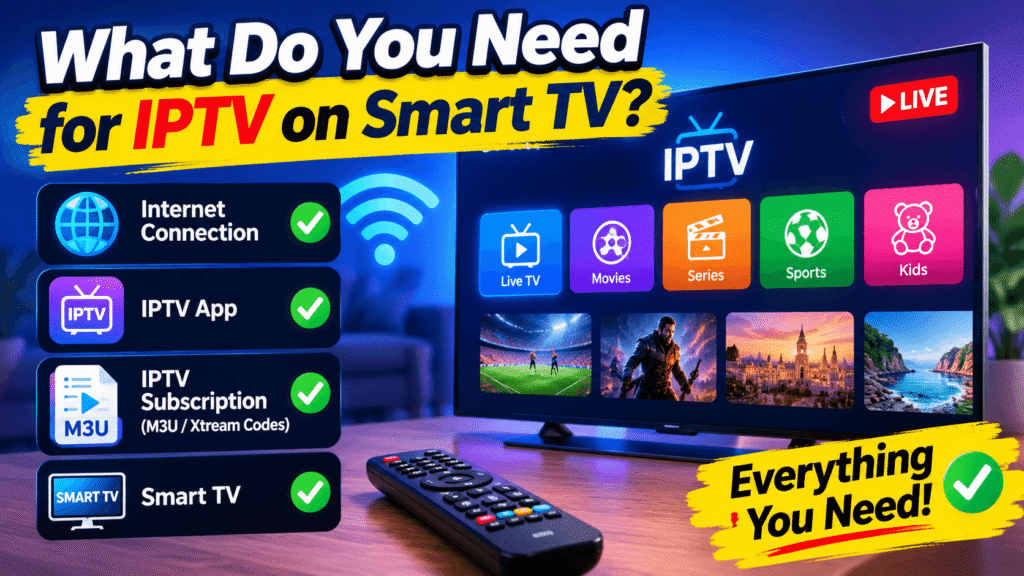
Before setting up IPTV on Smart TV, check four basic requirements.
1. A compatible television
Many smart televisions run platforms such as Google TV, Android TV, Samsung’s Tizen or LG’s webOS. App availability varies between models, countries and operating-system versions.
2. An internet connection
Streaming quality depends heavily on your connection. A fast connection is useful, but stability is just as important. Wi-Fi interference, network congestion and an overloaded router can cause buffering even when your internet package is advertised as fast.
3. A legitimate IPTV service
Choose a provider that clearly explains what content it offers and operates legally. Be particularly cautious with services promising thousands of premium channels, pay-per-view events and new films for an unusually low price.
4. A compatible IPTV application
If your provider does not have its own app, it may support a third-party IPTV player. Before installing one, check that it is available from your TV’s official app store and that it supports your provider’s authorised service format.
How to Set Up IPTV on Smart TV
The exact steps depend on your television brand and service, but setup is similar.
Step 1: Connect your TV to the internet
Open your television’s network settings and connect through Wi-Fi or Ethernet. Ethernet is often preferable if your router is close enough because a wired connection can reduce wireless interference.
Step 2: Open the official app store
Search your TV’s application store for your provider’s official application or a compatible, reputable IPTV player.
Step 3: Install the application
Download the app and wait for installation to finish. Avoid installing applications from unofficial websites or unknown files.
Step 4: Sign in
Open the application and enter your legitimate subscription details. Depending on the service, you may use an email address and password, activation code or another authorised login method.
Step 5: Load your content
Once authenticated, the application should display the channels or programmes included with your subscription. If your service provides an EPG, allow it to load so you can browse the television schedule more easily.
Step 6: Test several channels
Try different channels and video qualities. Testing the service before making major changes to your network settings can help you identify whether a problem comes from the service, television or internet connection.
Best IPTV Apps for Smart TVs
Choosing an IPTV player depends on your television platform and provider. When considering IPTV on Smart TV, look for an application with a clean interface, regular updates and good compatibility.
Useful features include:
- Electronic programme guide support
- Favourite channels
- Multiple playlist support
- Parental controls
- Subtitle support
- Search functionality
- Automatic programme updates
- Support for common streaming formats
Remember that an IPTV player does not make copyrighted content legal. The legality depends on whether the provider has permission to distribute the content.
IPTV on Samsung Smart TV
Samsung televisions use the Tizen operating system, so applications must be compatible with Samsung’s platform. For IPTV on Smart TV using a Samsung model, start by checking the Samsung app store for your provider’s official application.
If a particular application is unavailable, do not download suspicious installation files from random websites. Instead, ask your provider which officially supported method works with your Samsung model.
IPTV on LG Smart TV
LG smart televisions commonly use webOS. The setup for IPTV on Smart TV on an LG model is similar: connect the television to the internet, open the official LG app store and search for a supported application.
Older LG models may have different app compatibility. If an application does not appear in the store, check the model’s operating-system version and provider compatibility information.
IPTV on Android TV and Google TV
Android TV and Google TV offer a broad selection of streaming applications. For IPTV on Smart TV, users should download applications through the official Google Play Store whenever possible.
The advantage of these platforms is their wide app ecosystem. However, having more applications available also means users need to be careful. Check developer information, reviews and permissions before installing an unfamiliar app.
How to Improve IPTV Streaming Quality
If IPTV on Smart TV keeps buffering, the problem is not always the television. Try these practical improvements:
Use Ethernet when possible
A wired Ethernet connection can provide greater stability than Wi-Fi, especially in homes with many connected devices.
Move your router
If Ethernet is not practical, place the router in a central, open location rather than inside a cabinet or behind large objects.
Reduce network congestion
Downloads, cloud backups, gaming and other high-bandwidth activities can compete with streaming. Pause unnecessary downloads while watching live television.
Restart your network equipment
A simple router and television restart can sometimes resolve temporary connectivity problems.
Check the streaming service
If every other online service works normally but one IPTV service constantly buffers, the issue may be on the provider’s side. Contact the provider rather than repeatedly changing your television settings.
Common IPTV Problems and Solutions
Buffering
Buffering can result from weak Wi-Fi, network congestion, insufficient bandwidth or problems at the streaming provider.
Channels not loading
Check your subscription status, internet connection and app login. If only certain channels fail, the provider may be experiencing an outage.
EPG not showing
The electronic programme guide may require a refresh or may not be included in your subscription. Check the provider’s instructions.
App crashes
Update the application and your television’s operating system. If the issue continues, reinstall the official app or contact the developer.
Poor picture quality
Check your internet connection and the available stream quality. A lower-quality stream can sometimes be more stable on a slower connection.
Is IPTV Legal in the UK?
Using IPTV technology is legal. The key question is whether the service has permission to distribute the content. In the UK, consumers should avoid services that provide copyrighted television channels, films or sports without the necessary rights.
A useful rule is simple: if an offer looks too good to be true, investigate it before paying. Look for transparent company information, clear subscription terms and evidence that the service is authorised to provide its content.
How to Choose a Safe IPTV Provider
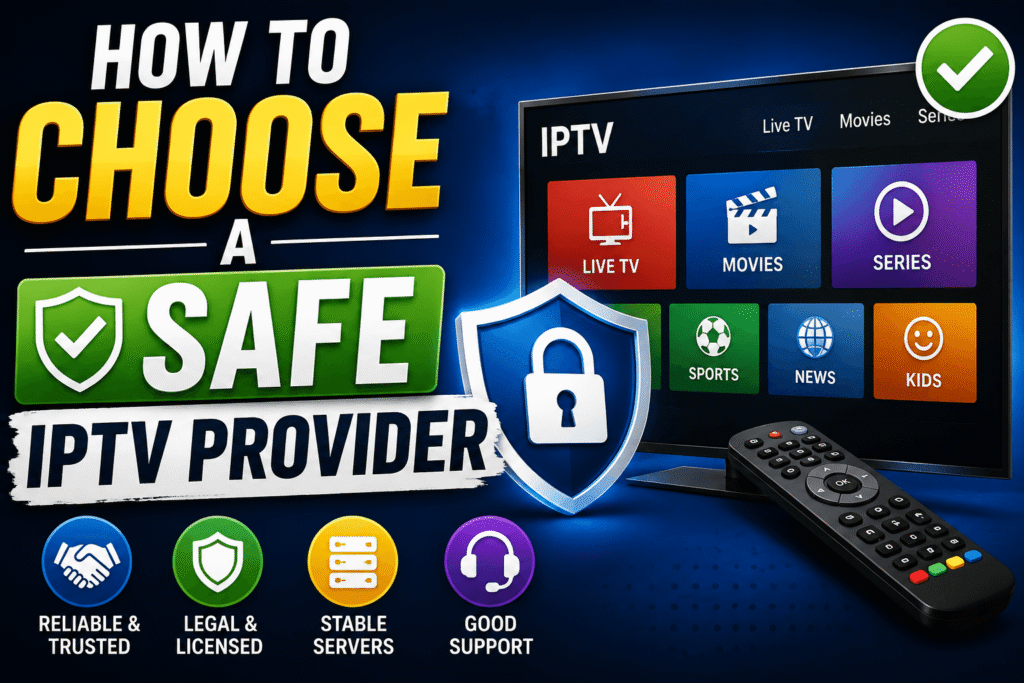
When selecting a service for IPTV on Smart TV, consider:
- Transparent pricing
- Clear terms and conditions
- Customer support
- Official applications
- Legitimate content rights
- Privacy and security information
- Reliable payment methods
- A clear refund policy where applicable
Avoid providers that pressure you to pay through unusual methods, promise every premium channel at an extremely low price or ask you to install unknown software.
IPTV on Smart TV vs Traditional Television
The biggest difference between IPTV on Smart TV and traditional television is the delivery method. Traditional broadcasting generally uses terrestrial, satellite or cable infrastructure, while IPTV uses an internet connection. This can provide greater flexibility, but streaming also depends on your broadband connection.
Frequently Asked Questions
Can I use IPTV on any Smart TV?
Not necessarily. Compatibility depends on your television’s operating system, model and the applications supported by your provider. Check compatibility before subscribing.
Do I need an IPTV box?
No. If your smart television supports the required application, you may not need a separate IPTV box. A box can still be useful when your television does not support a particular app or when you want additional features.
Does IPTV require fast internet?
IPTV requires a stable internet connection, and higher-resolution video generally needs more bandwidth. For the best experience, use a reliable connection and avoid heavy network activity while streaming.
Can I watch live sports through IPTV?
Yes, legitimate IPTV services can provide live sports when they have the appropriate broadcasting rights. Be careful with services advertising premium sports channels at unusually low prices.
Why does IPTV buffer on my Smart TV?
Buffering can be caused by weak Wi-Fi, network congestion, an overloaded router, insufficient bandwidth or a problem with the streaming provider. Testing another online video service can help identify the source.
Conclusion
IPTV on Smart TV can make internet-based television convenient, flexible and easy to manage. With a compatible television, reliable internet connection and legitimate streaming provider, beginners can set up a smooth viewing experience without unnecessary equipment.
Before subscribing, always check compatibility, content rights, customer support and payment security. Once your setup is ready, keep your TV and apps updated, use a stable connection and troubleshoot problems systematically.
If you are planning to start using IPTV, begin with a legitimate provider and your television’s official app store. A few minutes of research can save you money, reduce technical problems and give you a safer streaming experience.