
If you want to watch live TV, on-demand content, or other streaming services on a compatible Fire TV device, learning how to install IPTV on Fire Stick can open up more viewing options. The process is usually simple, but beginners can become confused by unfamiliar apps, playlist formats, device settings, and safety issues.
In this guide, you will learn how to install IPTV on Fire Stick, prepare your device, choose a compatible IPTV player, add your legitimate IPTV service details, and troubleshoot common problems. We will also explain what IPTV is, how it works, and how to use it responsibly.
What Is IPTV and How Does It Work?
IPTV stands for Internet Protocol Television. Instead of receiving television programming through traditional broadcast, satellite, or cable systems, IPTV delivers video over an internet connection.
An IPTV service may provide:
- Live television channels
- Video-on-demand content
- Catch-up television
- Electronic programme guides (EPGs)
- Sports and entertainment content
However, an IPTV player is not necessarily a TV service itself. Many players are simply applications that organise and play streams supplied by a separate provider. Always use services and content that you are legally entitled to access.
Before You Install IPTV on Fire Stick
Before you install IPTV on Fire Stick, check a few basics. Your Fire Stick should be connected to a stable Wi-Fi network and signed in to an Amazon account. You should also have enough free storage for the player you intend to use.
You may need:
- A compatible Fire TV or Fire Stick device
- A reliable internet connection
- A compatible IPTV player
- Login information or a playlist supplied by your legitimate IPTV provider
- A remote control or the Fire TV mobile app
A wired or strong Wi-Fi connection can improve streaming stability. If your connection is weak, even a well-configured IPTV player may buffer.
How to Install IPTV on Fire Stick Step by Step
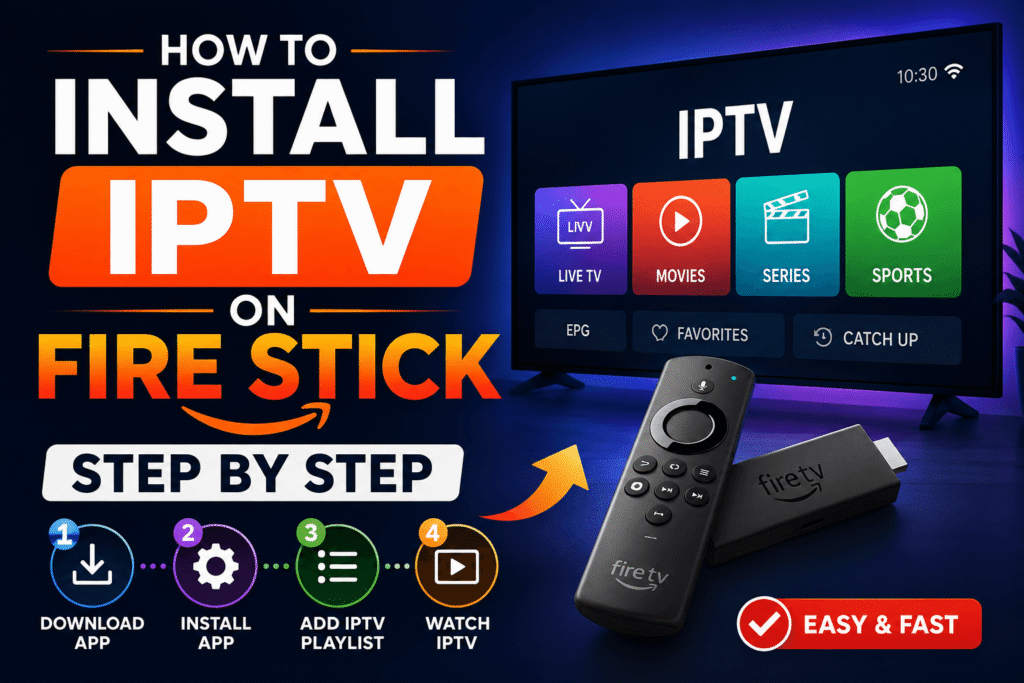
The following method focuses on installing a compatible IPTV player through the Fire TV interface. Menu names can vary slightly between Fire OS versions.
Step 1: Connect Your Fire Stick to the Internet
Plug the Fire Stick into your TV and power adapter. Select the correct HDMI input, then follow the on-screen setup process.
Go to Settings > Network and select your Wi-Fi network. Enter your password and wait for the connection to complete.
For the best experience, place your router where your Fire Stick can receive a strong signal. Avoid unnecessary VPN, router, or DNS changes until you know the basic setup works.
Step 2: Find a Compatible IPTV Player
Search the Amazon Appstore for a reputable IPTV player that supports your device and the playlist or login format provided by your legal IPTV service.
Popular categories include players that support:
- M3U playlists
- Xtream API or Xtream Codes-style credentials
- EPG information
- Multiple playlists
- Parental controls
- Favourites and channel groups
Availability can change by region, so check the current Amazon Appstore listing before installing an application.
Step 3: Install the IPTV Player
Open the Fire TV search function and enter the name of the player you have selected. Choose the official listing when available and review the developer information before installing.
Select Get, Download, or Install, depending on the interface shown on your device.
Once the installation finishes, open the application and review its permissions. Avoid applications that request unnecessary access to personal information or device features.
Step 4: Add Your IPTV Playlist or Login
After opening the player, you will normally see an option to add a playlist, account, portal, or provider.
Your legitimate provider may give you:
- An M3U playlist URL
- Xtream-style username and password
- A portal/server address
- An EPG URL
Enter the information exactly as provided. A single missing character in a URL, username, or password can prevent channels from loading.
If your player asks for a playlist name, choose something easy to recognise, such as “Home TV.” Then save the details and allow the player to load the channel list.
Step 5: Organise Your Channels
After the playlist loads, explore the categories and create favourites for channels you watch frequently.
A good IPTV player may allow you to:
- Hide unwanted channels
- Create favourites
- Sort channels
- Browse by category
- Display programme information
- Use an electronic programme guide
Organising your list can make navigation much faster, especially when a provider supplies thousands of channels.
Best Settings for IPTV Streaming
Once you install IPTV on Fire Stick, adjusting a few settings can improve the experience.
Video Quality
If your internet connection is fast and stable, HD or 4K may work well. If you experience buffering, temporarily reduce the quality to see whether the connection is the problem.
Buffer Settings
Some players offer buffer controls. Increasing the buffer can help with short network fluctuations, although it cannot fix a consistently slow connection.
App Updates
Keep Fire OS and your IPTV player updated when stable updates are available. Updates can fix compatibility problems and security issues.
Storage
Remove applications you no longer use. Limited storage can cause performance problems on Fire TV devices.
How to Improve IPTV Performance on Fire Stick
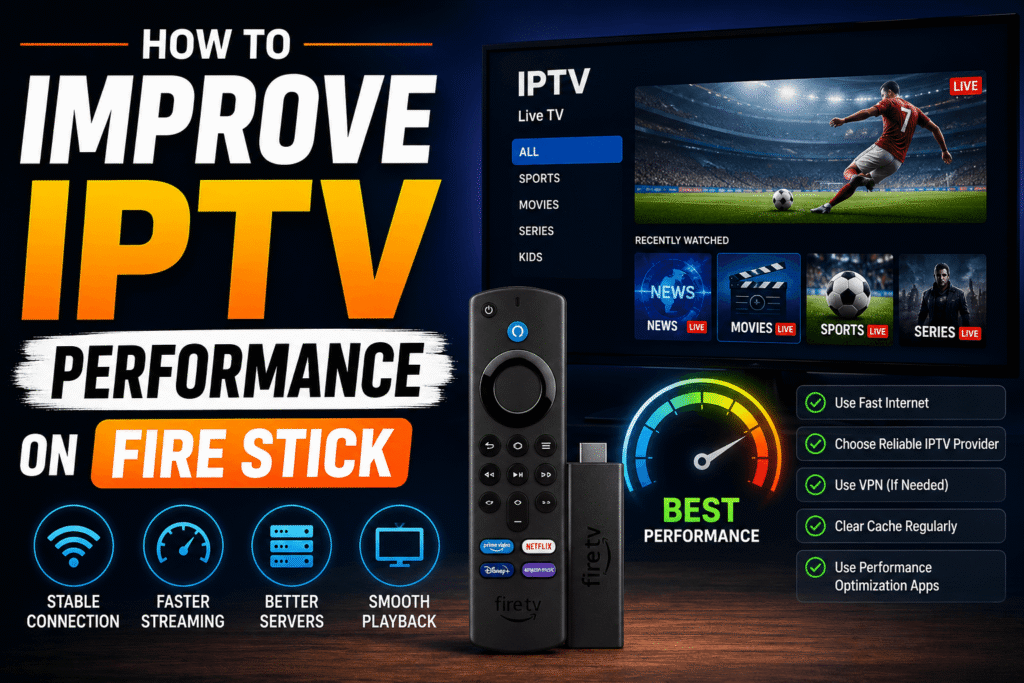
When you install IPTV on Fire Stick, a successful setup depends on more than the app itself. If streams constantly pause, try these steps:
- Restart the Fire Stick and router.
- Move the router closer to the device.
- Disconnect unused devices from the network temporarily.
- Test another channel or stream.
- Check whether the problem affects one channel or the entire service.
- Update the Fire Stick and player.
- Clear the player’s cache if the app provides that option.
- Contact your legitimate provider if their server appears to be unavailable.
If other streaming apps also buffer, your home network may be the real cause.
Common Problems When Installing IPTV
Some users encounter problems even after completing the setup when they install IPTV on Fire Stick.
IPTV Player Cannot Be Found
The application may not be available in your region or may have been removed from the Amazon Appstore. Search again using the exact app name and verify availability through the developer’s official channels.
Channels Do Not Load
Check your username, password, playlist URL, and server address. If the details are correct, test your internet connection and contact the provider.
Black Screen
A black screen can result from an unavailable stream, unsupported format, app compatibility issue, or provider-side problem. Try another channel to determine whether the issue is isolated.
Buffering
Buffering is often linked to network congestion, weak Wi-Fi, overloaded servers, or a stream quality that is too high for the available bandwidth.
Audio or Subtitle Problems
Check the player’s audio and subtitle settings. Some streams may not provide every audio track or subtitle option.
Is IPTV Legal on Fire Stick?
The ability to install IPTV on Fire Stick does not change the legal status of the content you access. IPTV technology itself is legal. The important question is whether the service has the necessary rights to distribute the content it provides.
When you install IPTV on Fire Stick, use reputable services and content you are legally allowed to access. Avoid providers that advertise copyrighted channels or premium events at unrealistically low prices without clear licensing information.
Never share another person’s account credentials or use unauthorised streams. If you are unsure about a service, review its terms, licensing information, and reputation before paying.
Security Tips for IPTV Users
After you install IPTV on Fire Stick, security is easy to overlook when setting up streaming apps. Protect yourself by following these practices:
- Download apps from trusted sources whenever possible.
- Do not install unknown APK files simply because a website promises free premium content.
- Avoid giving apps unnecessary permissions.
- Use strong, unique passwords.
- Keep Fire OS and apps updated.
- Be careful with websites requesting payment or personal information.
- Do not enter your IPTV credentials into suspicious third-party applications.
A VPN may be useful for certain legitimate privacy or network-management purposes, but it does not make unauthorised streaming legal. Choose privacy tools based on your own needs and local laws.
Why Use a Fire Stick for IPTV?
Many people choose to install IPTV on Fire Stick because the device is compact, affordable, and easy to connect to a television. Once a compatible player is installed, the interface can feel similar to a traditional TV experience.
Other benefits include:
- Simple remote control navigation
- Access to many mainstream streaming apps
- Portable design
- Regular software updates
- Support for different media players
Performance varies between Fire TV models, internet connections, applications, and streaming sources, so choose settings that match your hardware.
Frequently Asked Questions
Can I install IPTV on Fire Stick without technical knowledge?
Yes. Most of the process involves installing a compatible player, opening it, and entering credentials or a playlist supplied by your legitimate service. You do not need advanced technical skills.
Do I need an IPTV subscription?
Usually, an IPTV player does not provide channels by itself. You need a legitimate source of content, depending on the player and service you choose.
Can I use M3U on Fire Stick?
Many IPTV players support M3U playlists. If your service provides an M3U URL, select the player’s playlist option and enter the URL exactly as supplied.
Why is my IPTV buffering on Fire Stick?
Common causes include weak Wi-Fi, network congestion, overloaded streaming servers, or high video quality. Test other channels and other streaming apps to identify the source.
Is it safe to install IPTV apps?
It can be safe when you use reputable applications from trusted sources and keep your device updated. Avoid unknown APK files and services that request unnecessary permissions.
Can I use IPTV on different Fire TV models?
Compatibility depends on the application, Fire OS version, and hardware. Check the current app requirements before installation.
Conclusion
Learning how to install IPTV on Fire Stick is straightforward when you use a compatible player, a stable internet connection, and legitimate streaming credentials. Start with the official Fire TV app marketplace where possible, configure your playlist carefully, and troubleshoot one variable at a time if something goes wrong.
If you are a beginner learning how to install IPTV on Fire Stick, do not rush into complicated settings or unknown downloads. A clean setup, secure credentials, and a reliable connection are more important than installing dozens of apps. Follow the steps above, organise your channels, and enjoy a smoother streaming experience while staying within the law.