
If your IPTV streams buffer, freeze, look blurry or take too long to load, the problem may not be your IPTV service. The right Fire TV configuration can make a noticeable difference. In this guide, we’ll cover the Best Firestick Settings for IPTV and show you how to optimise your device for live TV, films, series and sport.
Whether you use a Fire TV Stick HD, Fire TV Stick 4K, Fire TV Stick 4K Max or another compatible Fire TV device, these tips are designed for beginners and intermediate users in the UK.
Why the Best Firestick Settings for IPTV Matter
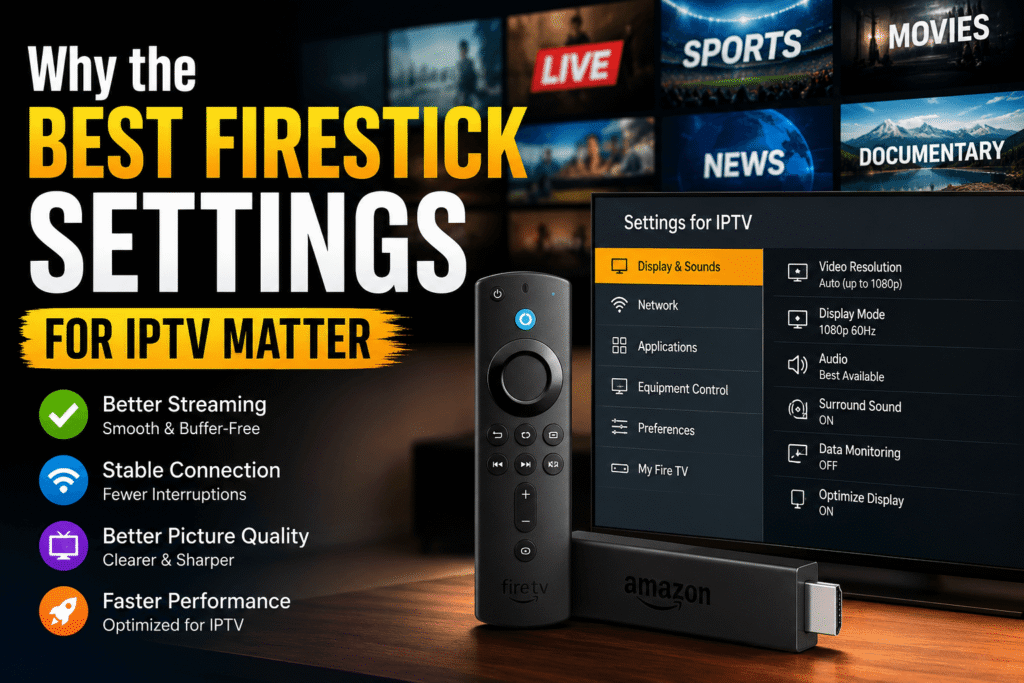
IPTV performance depends on several factors: your internet connection, Wi-Fi signal, device performance, storage, app configuration and video quality. The Best Firestick Settings for IPTV can reduce avoidable problems such as buffering, poor picture quality and sluggish menus.
There is no magic setting that fixes every streaming issue. The goal is to create a stable setup where your Firestick has enough network bandwidth, storage and processing capacity to play your stream consistently.
1. Update Your Firestick Software
Before changing advanced options, make sure Fire OS is up to date. Amazon currently recommends checking for updates through Settings > My Fire TV > About > Check for System Update, although menu names can vary by model and software version.
An updated device can provide bug fixes, compatibility improvements and security updates.
Recommended action
Go to:
Settings → My Fire TV → About → Check for System Update
If an update is available, install it and restart the Firestick afterwards.
This is one of the simplest Best Firestick Settings for IPTV because an outdated system can create problems that look like an IPTV app or internet issue.
2. Choose the Right Display Resolution
Your Firestick can output different resolutions depending on the model and television. For most modern UK TVs, Auto is a good starting point because the device can select a compatible resolution.
Go to:F
Settings → Display & Sounds → Display → Video Resolution
For a 4K television and compatible Firestick, 4K output can provide a sharper interface and support compatible 4K content. However, selecting a higher resolution does not turn an HD IPTV stream into genuine 4K.
Recommended settings
- 4K TV + 4K Firestick: Auto or the appropriate 4K option.
- Full HD TV: Auto or 1080p.
- Older TV: Auto is usually the safest choice.
Correct resolution is one of the Best Firestick Settings for IPTV when picture quality is your main concern.
3. Optimise Your Wi-Fi Connection
For IPTV, network stability is often more important than simply having a high headline speed. A fast connection with interference or a weak signal can still produce buffering.
Keep your router and Firestick as close together as practical. If your router offers both 2.4GHz and 5GHz Wi-Fi, test both and use the band that provides the most stable connection in your room.
Wi-Fi checklist
- Keep the Firestick away from obvious sources of interference.
- Avoid placing the router inside a cabinet.
- Restart your router if the connection becomes unstable.
- Test your connection at the time you normally watch IPTV.
- Reduce heavy downloads or uploads while streaming.
- Consider Ethernet if Wi-Fi remains unreliable.
Amazon also recommends restarting Fire TV and network equipment when troubleshooting connection problems.
A stable network is arguably the most important part of the Best Firestick Settings for IPTV.
4. Free Up Firestick Storage
Low storage can make a streaming device feel slow. Remove applications you no longer use and avoid unnecessary downloads.
You can check available storage from the Fire TV settings. Amazon lists storage information under the device/software area on current Fire TV interfaces.
Keep your setup simple. If you only use a handful of streaming applications, there is little benefit in filling your Firestick with dozens of apps.
Storage management is an often-overlooked part of the Best Firestick Settings for IPTV.
5. Clear the Cache of Your IPTV Player
A streaming application can accumulate temporary data. If an IPTV player becomes slow, crashes or behaves strangely, clearing its cache may help.
Try:
Settings → Applications → Manage Installed Applications → [Your IPTV Player] → Clear Cache
Be careful with Clear Data. Depending on the app, it can remove logins, playlists or other settings. Start with Clear Cache first.
Amazon also recommends clearing app cache/data as part of troubleshooting streaming problems.
6. Restart Your Firestick
A simple restart can resolve temporary software or performance problems. Amazon lists restarting Fire TV as a standard troubleshooting step for streaming issues.
You can restart through the Fire TV settings. If necessary, you can also disconnect the power adapter briefly and reconnect it.
If your Firestick suddenly becomes slow, restart it before changing several settings at once.
A regular restart is a small but useful part of the Best Firestick Settings for IPTV routine.
7. Match Video Quality to Your Internet
One common mistake is selecting the highest available quality all the time. If your connection is unstable, a lower-quality stream can be more reliable than a high-bitrate 4K stream.
As a general guide:
- SD: useful for slower connections or smaller screens.
- HD: a good balance for many households.
- Full HD: sharper detail but usually needs more bandwidth.
- 4K: excellent quality when the source, device, TV and connection support it.
Actual requirements vary with codec, bitrate, network conditions and the streaming service.
The Best Firestick Settings for IPTV should match your real network conditions rather than simply chasing the highest resolution.
8. Check HDMI and TV Compatibility
If you have a 4K or HDR television, make sure the Firestick is connected to a compatible HDMI input. If you see a black screen, strange colours or an unexpected resolution, try another HDMI port and check your TV’s input settings.
Amazon notes that HD content requires HDCP 1.4 compatibility, while UHD/HDR content can require HDCP 2.2.
This is particularly important when upgrading an older television or HDMI setup.
9. Fine-Tune Your IPTV Player
IPTV players differ, so there is no universal configuration. Depending on the application, you may see settings such as:
- Hardware acceleration
- Decoder selection
- Buffer size
- Frame-rate matching
- Audio passthrough
- EPG refresh options
If hardware acceleration is available, try enabling it first. If playback becomes worse, test the software decoder instead.
Do not change five settings at the same time. Make one adjustment, watch a stream for a few minutes and then decide whether it helped.
This approach makes the Best Firestick Settings for IPTV easier to troubleshoot.
10. Troubleshoot IPTV Buffering Step by Step
When buffering happens, avoid random tweaks. First, determine whether the problem is local or provider-side.
Try this sequence:
- Test another channel or stream.
- Restart the Firestick.
- Restart the router.
- Check Wi-Fi signal and network use.
- Clear the IPTV app cache.
- Try a lower video quality.
- Test Ethernet if available.
- Check whether the IPTV provider has an outage.
If every channel buffers, investigate your device and network. If only one channel or source buffers while others work normally, the problem may be on the content provider’s side.
The Best Firestick Settings for IPTV are much more useful when combined with a logical troubleshooting process.
Best Firestick Settings for IPTV: Quick Checklist
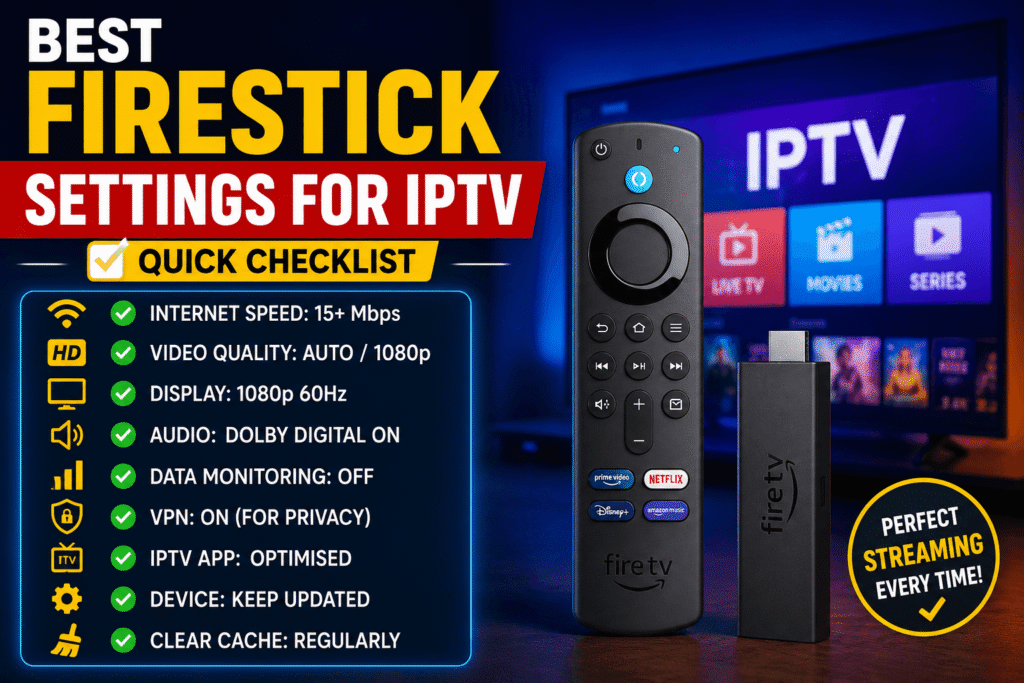
For a reliable beginner-friendly setup, use this checklist:
- Update Fire OS.
- Keep display resolution on Auto unless you have a specific reason to change it.
- Use a stable Wi-Fi connection or Ethernet.
- Keep enough free storage.
- Clear your IPTV player’s cache when needed.
- Restart the Firestick when performance drops.
- Match video quality to your connection.
- Check HDMI compatibility for 4K/HDR.
- Test player options one at a time.
- Remove applications you no longer use.
- Avoid untrusted “booster” or “cleaner” apps.
- Use only IPTV services and content you are authorised to access.
These are the core Best Firestick Settings for IPTV for most UK households.
Common Firestick IPTV Mistakes to Avoid
Installing too many apps
A crowded device is harder to manage. Keep only applications you actually use.
Selecting 4K for everything
4K is not automatically better if the source is HD or your connection cannot sustain the required bitrate.
Ignoring the router
Your Firestick is only one part of the streaming chain. Router placement, Wi-Fi interference and household traffic can all affect playback.
Using “RAM cleaner” apps
Be cautious with apps that promise to double performance or eliminate every buffering problem. Focus on proven settings and basic troubleshooting.
Blaming the Firestick immediately
If only one channel buffers, your Firestick may not be the problem. Test multiple streams before replacing hardware.
FAQ
What are the Best Firestick Settings for IPTV for beginners?
Start with updated Fire OS, Auto display resolution, a stable network, sufficient free storage and a clean IPTV app cache. These settings provide a strong baseline without unnecessary tweaks.
What internet speed is best for IPTV on Firestick?
There is no single speed that guarantees smooth playback. HD and 4K streams can have very different bitrates. A stable connection with enough capacity for your stream and other household traffic is more important than a headline speed alone.
Why does IPTV keep buffering on my Firestick?
Common causes include weak Wi-Fi, network congestion, overloaded streaming sources, high-bitrate video, outdated software or app problems. Test different channels and work through the troubleshooting checklist before changing advanced settings.
Should I use 4K resolution on my Firestick?
If you have a compatible 4K TV, Firestick and source, 4K can provide better picture quality. Otherwise, Auto or 1080p may be more appropriate.
Does clearing cache improve IPTV performance?
It can help when an app has accumulated temporary data or is behaving unusually. It will not necessarily fix buffering caused by your network or the streaming source.
Is a VPN necessary for IPTV?
No. A VPN is not required for every IPTV setup and is not a guaranteed buffering fix. If you use one, choose a reputable provider and check whether it improves or reduces your connection performance.
Conclusion
The right Firestick configuration can make IPTV easier and more enjoyable to watch, but there is no magic switch that fixes every streaming problem. Start with the basics: update your device, optimise your network, choose sensible display settings, manage storage and keep your IPTV player clean.
The Best Firestick Settings for IPTV are the settings that match your television, Firestick model, internet connection and streaming source. The Best Firestick Settings for IPTV should be tested gradually, not changed all at once.
For UK viewers, the best approach is simple: build a stable setup first, then fine-tune picture quality and IPTV player options. If you use an IPTV service, make sure you have the right to access the content you watch.
Ready to improve your Firestick experience? Work through the checklist above one setting at a time and identify what is holding your IPTV streaming back.