
re you looking for a simple way to organise and watch your favourite television content on your preferred device? Learning how to set up IPTV Smarters Pro can make the process much easier, even if you have never used an IPTV player before.
IPTV Smarters Pro is a popular media player designed to help users access compatible live TV, films and television series through a supported service. It offers a user-friendly interface, making it suitable for beginners and experienced viewers alike.
Whether you use a Firestick, Android TV, smartphone or compatible Smart TV, this guide explains everything you need to know, from installation and account setup to playback settings and common problems.
By the end, you will understand how to configure the application correctly and enjoy a smoother viewing experience in the UK.
What Is IPTV Smarters Pro?
Before learning how to set up IPTV Smarters Pro, it is important to understand what the application actually does.
IPTV Smarters Pro is a media player that allows users to organise and play compatible IPTV content. It does not normally provide television channels, films or subscriptions by itself.
Instead, you need access to a compatible IPTV provider that supplies authorised login details or a supported playlist.
Key Features of IPTV Smarters Pro
Some of the features available in compatible versions include:
- Live TV organisation.
- Video-on-demand (VOD) libraries.
- TV series categories.
- Electronic Programme Guide (EPG) support.
- Multiple playlist management.
- Parental control options.
- Support for different devices.
- User-friendly navigation.
These features make the player convenient for people who want to manage their compatible streaming content in one place.
What Do You Need Before Setting Up IPTV Smarters Pro?
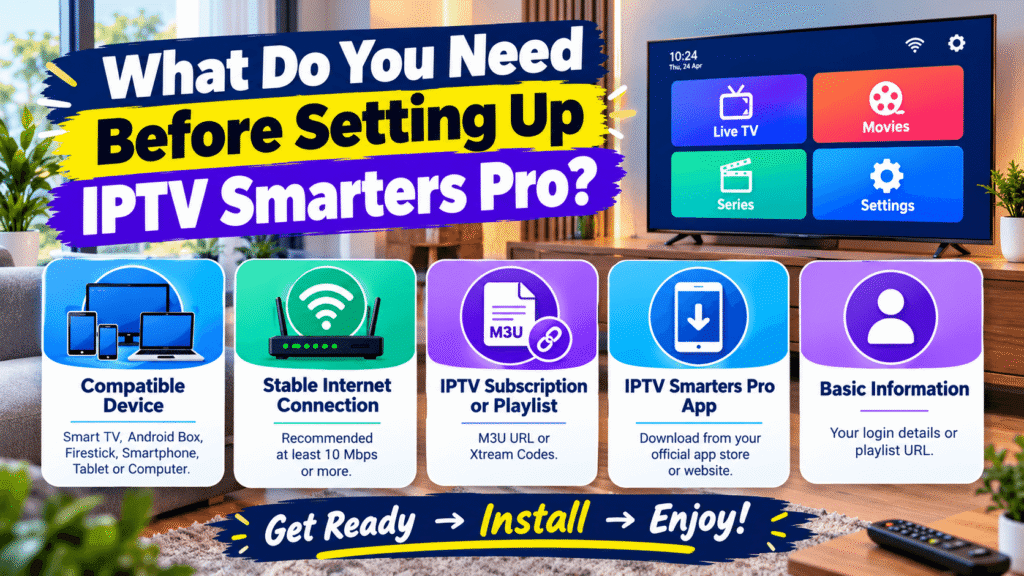
Getting everything ready before installation can save time and prevent common errors.
Here is what you should prepare:
1. A Compatible Device
IPTV Smarters Pro may be available on supported Android devices and other platforms, depending on the current official distribution.
Common devices include:
- Amazon Fire TV devices.
- Android TV boxes.
- Android smartphones and tablets.
- Compatible Smart TVs.
- Windows computers, where a supported version is available.
Always check the official app store or developer information for your device.
2. A Stable Internet Connection
A reliable internet connection is essential for streaming.
For a better experience, consider the following general speeds:
| Video Quality | Suggested Internet Speed |
|---|---|
| SD | 5 Mbps |
| HD | 10 Mbps |
| Full HD | 15–20 Mbps |
| 4K | 25 Mbps or higher |
These are general recommendations, not guarantees. Actual performance depends on your network, device and streaming source.
3. Compatible Login Details
Your authorised IPTV service may provide one of the following:
- Username and password.
- Server URL.
- M3U playlist URL.
- Xtream Codes API credentials.
Keep these details available before starting the configuration.
How to Set Up IPTV Smarters Pro on Amazon Firestick
<PRIVATE_PERSON> users in the UK often prefer Fire TV devices because they are compact and easy to connect to a television.
Follow these steps to configure a compatible installation.
Step 1: Find the Official Application
- Turn on your Firestick.
- Open the Amazon Appstore.
- Search for IPTV Smarters Pro.
- Check whether an official compatible version is available.
- Select the application and install it.
Availability can change by region and device. Avoid unofficial downloads from unknown websites.
Step 2: Open the Application
Once installation is complete:
- Return to your Firestick home screen.
- Open your installed applications.
- Select IPTV Smarters Pro.
- Accept any required permissions.
- Continue to the login screen.
You should now see the available account setup options.
Step 3: Choose Your Login Method
Depending on the application version, you may see options such as:
- Login with Xtream Codes API.
- Load Your Playlist or File/URL.
Choose the method supported by your authorised provider.
Step 4: Enter Your Account Information
If your provider supports Xtream Codes API login, you will generally need:
- Any name you want to give the playlist.
- Username.
- Password.
- Server URL.
Enter the details carefully.
A small typing mistake can prevent the application from connecting successfully.
Step 5: Complete the Setup
Select the login or add-user option.
If your details are correct and the service is available, the application should load the supported content categories.
You can then explore the interface and adjust your preferred settings.
How to Set Up IPTV Smarters Pro on Android TV
Android TV offers a convenient way to access streaming applications directly from your television.
If you want to understand how to set up IPTV Smarters Pro on an Android TV device, follow this simple process.
Installation Instructions
- Switch on your Android TV.
- Open Google Play Store.
- Search for IPTV Smarters Pro.
- Check compatibility and developer information.
- Install the supported application.
- Open it after installation.
If the application is unavailable, check the developer’s official distribution information rather than installing an unverified APK.
Configure Your Account
After opening the player:
- Select the supported login method.
- Enter your authorised account information.
- Check the server address.
- Submit the details.
- Wait for the compatible content to load.
Once connected, you can navigate between available categories using your TV remote.
Tip: Keep your Android TV software updated to improve compatibility and security.
How to Set Up IPTV Smarters Pro on a Smartphone
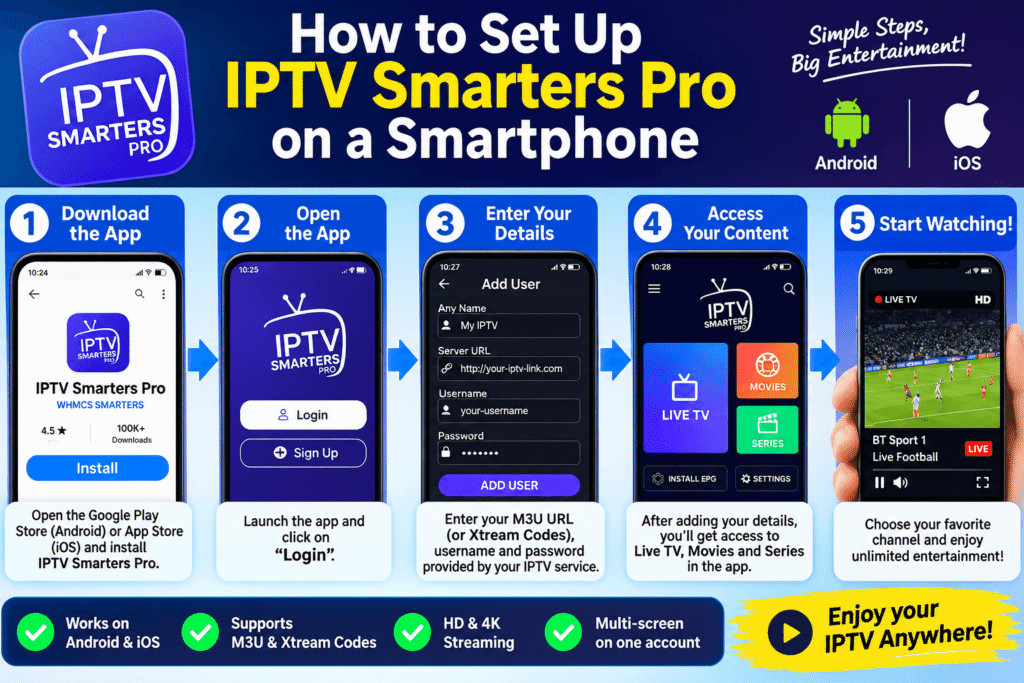
Using IPTV Smarters Pro on a mobile device can be useful when travelling or watching content away from your television.
For Android Users
- Open Google Play Store.
- Search for the application.
- Verify the publisher and compatibility.
- Install the app.
- Launch it.
- Enter your authorised IPTV account details.
For iPhone Users
Application availability and naming can vary on Apple’s App Store.
Search for the official supported application and verify that it is compatible with your device and region.
Avoid applications that imitate the name of a recognised player without clear developer information.
How to Add an IPTV Playlist Using an M3U URL
Some compatible providers supply an M3U playlist instead of API login credentials.
An M3U playlist is a file or URL containing references to media streams.
Steps to Add an M3U Playlist
- Open the supported IPTV player.
- Select the playlist or file/URL option.
- Enter a playlist name.
- Paste the authorised M3U URL.
- Add any required EPG information.
- Save the configuration.
The application will attempt to process the playlist.
If it fails, check that the URL is complete and has not expired.
Never share private playlist links publicly because they may contain account access information.
Best Settings for a Better IPTV Smarters Pro Experience
After learning how to set up IPTV Smarters Pro, the next step is adjusting the settings to suit your device and internet connection.
Choose the Correct Video Player
Depending on the version, you may be able to select an internal or external video player.
An external player may help with compatibility for certain media formats.
However, the best choice depends on your device and the specific playback issue.
Enable EPG
EPG stands for Electronic Programme Guide.
When supported by your service, it displays programme information such as:
- Programme names.
- Start and finish times.
- Channel schedules.
- Current and upcoming programmes.
If the guide appears empty, refresh it or check whether your provider supplies compatible EPG data.
Organise Your Favourite Channels
If your playlist contains many categories, favourites can make navigation easier.
Add frequently watched channels to your favourites list where the application supports this feature.
This is particularly helpful for people who regularly watch news, documentaries or entertainment.
Use a Reliable Wi-Fi Connection
For better streaming performance:
- Place your router in an open location.
- Avoid downloading large files while streaming.
- Use the 5 GHz Wi-Fi band when suitable.
- Consider Ethernet for compatible TV boxes.
- Restart your router if the connection becomes unstable.
Common IPTV Smarters Pro Problems and How to Fix Them
Even after a successful installation, you may encounter problems.
Here are some common issues and practical solutions.
IPTV Smarters Pro Login Failed
This is one of the most common setup problems.
Possible causes include:
- Incorrect username.
- Incorrect password.
- Wrong server URL.
- Expired account.
- Temporary service interruption.
Solution: Check your login details carefully and contact your authorised provider if the problem continues.
IPTV Smarters Pro Not Loading Channels
If the application opens but content does not appear, try the following:
- Check your internet connection.
- Refresh the playlist.
- Restart the application.
- Confirm that your account is active.
- Check whether the playlist URL is still valid.
IPTV Smarters Pro Buffering
Buffering can be frustrating, especially when watching live events.
Try these solutions:
- Restart your router.
- Reduce other internet activity.
- Use a wired connection if possible.
- Close unnecessary applications.
- Check your device storage.
- Test another compatible stream.
Remember that buffering may also be caused by the source server rather than your home internet.
IPTV Smarters Pro Black Screen
A black screen can indicate a playback or compatibility issue.
Try changing the available video player, restarting the app or checking for updates.
If only one stream is affected, the problem may be with that particular source.
How to Clear the Application Cache
On supported Android devices:
- Open Settings.
- Select Apps.
- Find IPTV Smarters Pro.
- Open Storage.
- Select Clear Cache.
Avoid selecting Clear Data unless you are prepared to configure the application again.
Is IPTV Smarters Pro Free?
IPTV Smarters Pro is a media player, and the availability of its features depends on the platform and version.
However, using the player does not automatically provide access to television channels or paid content.
You may need a separate subscription to a legitimate service that has the necessary distribution rights.
Always review the provider’s pricing, cancellation terms and licensing information before purchasing.
Is IPTV Smarters Pro Legal in the UK?
The legality of IPTV technology and the legality of particular content sources are different questions.
IPTV is simply a method of delivering television content through internet networks.
However, streaming copyrighted channels, films or sports without the required permission may raise copyright issues under UK law.
To stay on the safe side:
- Use authorised services.
- Check whether the provider has the necessary content rights.
- Avoid suspiciously cheap offers promising premium copyrighted content without clear licensing.
- Review the service’s terms and privacy policy.
You can find further information from the UK Intellectual Property Office and Ofcom.
Frequently Asked Questions (FAQs)
1. How to set up IPTV Smarters Pro for the first time?
Install a compatible official version, open the application, select your supported login method and enter the credentials supplied by your authorised provider. Once connected, the application can load the available content.
2. Do I need an IPTV subscription to use IPTV Smarters Pro?
The player itself does not normally include television channels or movies. You need a compatible source of content, and access may require a separate subscription.
3. Can I use IPTV Smarters Pro on Firestick in the UK?
Yes, where a compatible version is available for your device. Check the Amazon Appstore and official developer information for installation options.
4. Why is IPTV Smarters Pro not accepting my login details?
Incorrect credentials, a server URL error, an expired account or a temporary connection problem may prevent login. Verify the details with your authorised service provider.
5. Can I use IPTV Smarters Pro on multiple devices?
This depends on the application’s capabilities and your content provider’s subscription terms. Check the permitted number of simultaneous connections before using multiple devices.
6. Does IPTV Smarters Pro support 4K streaming?
Playback depends on the device, player version, internet connection and source quality. The application alone cannot turn standard-definition content into genuine 4K.
7. What internet speed is best for IPTV Smarters Pro?
For HD streaming, around 10–20 Mbps is a useful starting point. For 4K, 25 Mbps or more is generally recommended, although stable performance is equally important.
8. Is IPTV Smarters Pro suitable for beginners?
Yes. Its category-based interface and supported login options make it relatively straightforward for new users once they have the correct account information.
Conclusion
Learning how to set up IPTV Smarters Pro does not need to be complicated. With a compatible device, a stable internet connection and the correct authorised login details, most beginners can complete the basic configuration in a few minutes.
Whether you are using Firestick, Android TV or a smartphone, the important steps remain similar: install the supported application, select your login method, enter your information and adjust the settings to suit your needs.
For the best experience, always use legitimate content sources, keep your device updated and check your internet connection if playback problems occur.
Ready to improve your streaming setup? Explore our other beginner-friendly IPTV guides to discover device compatibility, streaming tips and ways to enjoy a more convenient viewing experience in the UK.