
Nothing is more frustrating than watching your favourite programme when the screen suddenly freezes, a loading circle appears, or the video keeps stopping. If you use IPTV Smarters, these interruptions can quickly ruin your viewing experience.
The good news is that an effective IPTV Smarters buffering fix may be simpler than you think. Buffering can happen because of a weak internet connection, an overloaded streaming device, incorrect playback settings or problems with the streaming server.
In this guide, you will discover 12 practical ways to reduce buffering on Amazon Firestick, Android TV, Smart TVs and smartphones. We will explain how to identify the real cause, which settings to check first and when you should contact your internet provider or streaming service.
Whether your problem happens occasionally or every few minutes, these troubleshooting steps can help you find the cause and improve playback without wasting money on unnecessary equipment.
What Causes IPTV Smarters Buffering?
Before trying an IPTV Smarters buffering fix, it is important to understand why buffering happens.
Buffering occurs when a video player cannot receive media data quickly enough to continue playback smoothly. The player pauses while it collects more data.
Several factors can cause this problem.
1. Slow or Unstable Internet
Your internet connection might be fast enough for ordinary browsing but struggle with high-quality video streaming.
Common causes include:
- Weak Wi-Fi signals.
- Too many connected devices.
- Network congestion during busy evening hours.
- An unreliable router.
- Temporary broadband problems.
2. Streaming Server Problems
Sometimes your home internet is working perfectly, but the video still buffers.
The streaming source may be experiencing high demand, maintenance or technical problems. If this happens mainly with one channel or stream, the source itself could be responsible.
3. Device Performance Issues
Older Firesticks, TV boxes and smartphones may struggle when storage is nearly full or several applications are running simultaneously.
Outdated software and overheating can also affect playback.
4. Incorrect Playback Settings
Some video streams work better with particular playback engines or supported formats. An incompatible player setting can cause freezing, audio problems or a black screen.
Identifying the likely cause will help you choose the right solution.
12 Best IPTV Smarters Buffering Fixes
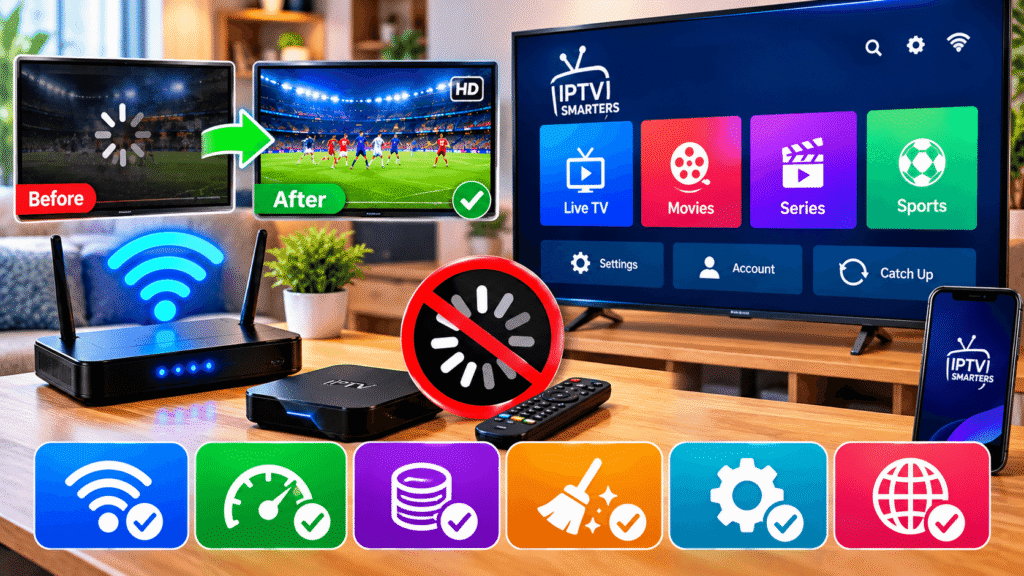
Try the following solutions in order, starting with the simplest. Test playback after each major change so you can identify what actually works.
1. Test Your Internet Speed
The first step is to check whether your internet connection is fast and stable enough for your chosen video quality.
You can use a reputable speed-testing service, such as Ookla Speedtest.
As a general guide:
| Streaming Quality | Suggested Download Speed |
|---|---|
| SD | 5 Mbps |
| HD | 10 Mbps |
| Full HD | 15–20 Mbps |
| 4K UHD | 25 Mbps or more |
These are approximate guidelines rather than guarantees. The required speed can vary according to the stream, network conditions and other connected devices.
What to do: Run the test near your streaming device if possible. If the speed is much lower than expected, restart your router and test again.
2. Restart Your Router and Streaming Device
A simple restart can resolve temporary network and software problems.
Follow these steps:
- Close IPTV Smarters.
- Turn off your streaming device.
- Unplug your router from the power supply.
- Wait approximately 30 seconds.
- Reconnect the router and allow it to reconnect to the internet.
- Turn your streaming device back on.
- Open the application and test playback.
This can refresh the network connection and clear certain temporary problems.
However, restarting will not fix an overloaded streaming server or a permanently weak internet connection.
3. Improve Your Wi-Fi Signal
A weak Wi-Fi signal is a common reason for streaming interruptions.
If your router is in another room, behind thick walls or inside a cupboard, your device may not receive a reliable connection.
Try these improvements:
- Move your router to a central, open position.
- Keep it away from large metal objects.
- Avoid placing it behind a television.
- Move your streaming device closer to the router.
- Use a compatible Wi-Fi extender if necessary.
If your router supports both 2.4 GHz and 5 GHz Wi-Fi, remember that 5 GHz can offer higher speeds at shorter distances, while 2.4 GHz may reach further.
Choose the band that provides the most stable connection in your home.
4. Use an Ethernet Connection
If you regularly experience buffering on Firestick or Android TV, a wired connection may help.
Ethernet avoids many of the interference problems associated with Wi-Fi.
You may need a compatible Ethernet adapter for your device.
A wired connection is especially useful when:
- Your router is close to your television.
- Your Wi-Fi signal is weak.
- Several people use the wireless network.
- Playback frequently stops despite good broadband speeds.
Ethernet cannot solve problems caused by a failing stream source, but it can make your local connection more consistent.
5. Clear the IPTV Smarters App Cache
Temporary application files can sometimes contribute to performance problems.
On compatible Android devices, you can usually clear the cache through the system settings.
For Android TV:
- Open Settings.
- Select Apps.
- Find IPTV Smarters or the compatible player you installed.
- Open Storage and cache.
- Select Clear cache, if available.
- Restart the application.
On Fire TV, menu names vary by device and software version, but you can generally find the equivalent option under Settings, Applications and Manage Installed Applications.
Be careful not to select Clear data unless you are happy to configure the application again. This action may remove saved settings or login information.
6. Close Background Applications
Streaming devices have limited memory and processing resources.
If several applications are running, performance may suffer, particularly on older devices.
To try this IPTV Smarters buffering fix:
- Close applications you are not using.
- Restart the streaming device.
- Remove applications you no longer need.
- Keep the device software updated.
- Avoid running unnecessary downloads during streaming.
These steps can improve general device performance, although they will not increase your broadband speed.
7. Change the Available Video Player
Depending on your application version and device, IPTV Smarters may provide different playback options.
Some streams work better with one supported player than another.
If your application offers a choice between an internal player and a compatible external player, try changing the setting and testing the same stream again.
For example, if a video freezes repeatedly but the audio continues, a playback compatibility problem may be involved.
Only install external players from trusted sources. Availability and supported options vary between versions.
8. Reduce the Streaming Quality
High-resolution video requires more bandwidth than standard-definition content.
If your connection struggles with Full HD or 4K, reducing the quality may help.
Try the following:
- Open the relevant stream or playback settings.
- Select a lower quality if the source provides that option.
- Test the stream for several minutes.
- Compare the result with the original quality.
Not every IPTV player or stream allows the viewer to change resolution. In those cases, you may need to select another available version of the content.
A stable HD stream is often more enjoyable than a 4K stream that constantly stops.
9. Update Your Application and Device
Outdated software can cause compatibility problems.
Check for updates through the official app store or the application’s verified distribution channel.
You should also check for updates to:
- Fire TV software.
- Android TV software.
- Smart TV firmware.
- Your device’s operating system.
Before updating, confirm that the application is compatible with your device.
Avoid modified applications and downloads from unknown websites, as these can introduce security risks.
10. Check Whether the Streaming Server Is Down
If your internet connection is stable and other applications stream normally, the problem may be with the particular content source.
Look for these signs:
- One channel buffers while others work.
- Every channel stops at the same time.
- The application displays connection errors.
- Playback works again later without any changes to your device.
Contact your authorised provider and ask whether there is a known service interruption.
If only one stream fails, changing your router settings repeatedly is unlikely to help.
11. Check for VPN or Network Problems
A VPN can sometimes improve routing or privacy, but it can also introduce extra network delay and reduce available bandwidth.
If you already use a VPN, compare playback with it enabled and disabled, provided this is permitted by your service terms and local requirements.
Do not assume that a VPN will always fix buffering.
Also check whether your router has unusual network restrictions or whether your broadband provider is experiencing an outage.
If you suspect a network-management issue, contact your ISP for an explanation rather than changing security settings unnecessarily.
12. Check Your Device Temperature and Storage
Streaming devices can slow down when they become too hot or run low on available storage.
This is especially relevant for compact devices connected directly behind a television.
Try the following:
- Ensure the device has adequate ventilation.
- Keep ventilation openings clear.
- Remove unused applications.
- Free up storage space.
- Disconnect unnecessary USB accessories.
- Restart the device if performance becomes unusually slow.
Avoid covering the device with fabric or placing it near a heat source.
If overheating continues, consult the manufacturer’s guidance.
IPTV Smarters Buffering Fix for Firestick
Firestick users may encounter buffering because of Wi-Fi interference, limited device resources or application compatibility.
For a practical Firestick troubleshooting routine, follow this order:
- Restart the Firestick and router.
- Test the internet speed.
- Move the device closer to the router.
- Clear the application cache.
- Check Fire TV software updates.
- Test another authorised stream.
- Contact the content provider if the issue persists.
If your Firestick is connected behind the television, using a compatible HDMI extender may help improve its position and ventilation.
Avoid factory-resetting your device as a first step. A reset removes settings and requires you to configure your applications again.
How to Identify the Real Cause of Buffering
The quickest way to find the right solution is to compare different streams and applications.
Use this simple troubleshooting guide:
| What You Notice | Possible Cause | What to Try |
|---|---|---|
| Every streaming app buffers | Internet or router problem | Test speed and restart router |
| Only one stream buffers | Source-specific problem | Test another stream |
| Buffering happens in the evening | Network congestion | Compare speeds at different times |
| Device feels unusually hot | Overheating | Improve ventilation |
| Login works but playback fails | Source or compatibility issue | Check stream and player settings |
| Buffering improves near router | Weak Wi-Fi | Improve signal or use Ethernet |
These observations are useful because they help separate home network problems from application or streaming-source problems.
How to Prevent IPTV Smarters Buffering in the Future
Once you have resolved the problem, a few habits can help reduce the likelihood of it returning.
Maintain Your Network
Keep your router updated, position it properly and avoid unnecessary network congestion.
If several people in your home stream video or play online games simultaneously, consider whether your broadband package meets your household’s needs.
Keep Your Device in Good Condition
Install official updates, maintain sufficient storage and make sure the device has good ventilation.
Avoid installing unnecessary applications or unofficial software.
Choose Reliable, Authorised Content Sources
A well-maintained device cannot compensate for a consistently unreliable source.
Before subscribing to a streaming service, check its licensing, support options, pricing and cancellation terms.
No application or provider can honestly guarantee that buffering will never occur.
Frequently Asked Questions
1. Why does IPTV Smarters keep buffering even with fast internet?
Your connection may be fast but unstable, or the streaming source may be experiencing congestion. Check your connection stability, test other streams and compare playback in another application.
2. What is the best IPTV Smarters buffering fix for Firestick?
Start by restarting your router and Firestick, testing your internet speed and clearing the application’s cache. If the problem continues, test another stream to identify whether the source is responsible.
3. Does clearing the IPTV Smarters cache delete my account?
Clearing the cache normally removes temporary files rather than saved account information. However, clearing application data is different and may remove your settings or login details.
4. Can a VPN stop IPTV Smarters buffering?
Sometimes a VPN can improve routing, but it can also make streaming slower. Compare performance with and without your existing VPN, where appropriate, instead of assuming it will solve the problem.
5. Why does IPTV Smarters buffer only on certain channels?
The individual stream may have a source-side problem, different bandwidth requirements or a compatibility issue. Test another channel and contact your authorised provider if the issue continues.
6. What internet speed do I need for IPTV Smarters?
As a general starting point, aim for around 10 Mbps for HD and 25 Mbps or more for 4K. Actual requirements depend on stream quality, network stability and other internet activity.
7. Will buying a new Firestick fix buffering?
Not necessarily. A newer device may improve performance if your existing device is slow or outdated, but it will not resolve weak broadband or an overloaded streaming source.
8. Is IPTV Smarters buffering always caused by my internet provider?
No. Buffering can result from the home network, streaming device, application, playback settings or content source. Test several possible causes before deciding to change broadband providers.
Conclusion
An effective IPTV Smarters buffering fix starts with identifying the cause rather than immediately buying a new device or upgrading your broadband package.
Test your internet speed, restart your equipment, improve your Wi-Fi signal, clear the application cache and check the playback settings. If only one stream continues to buffer, investigate the source rather than repeatedly changing your home network.
For Firestick and Android TV users, these simple steps can often identify the problem and help restore smoother playback.